Template Admin
Manage the Templates and Tools on your project.
Written By Patrick
Last updated Over 1 year ago
Import Templates
Select the Tool in need of a Template and click on the gear next to the tool name. Use the three dots on the far right of the screen to choose Import.
Updating Templates
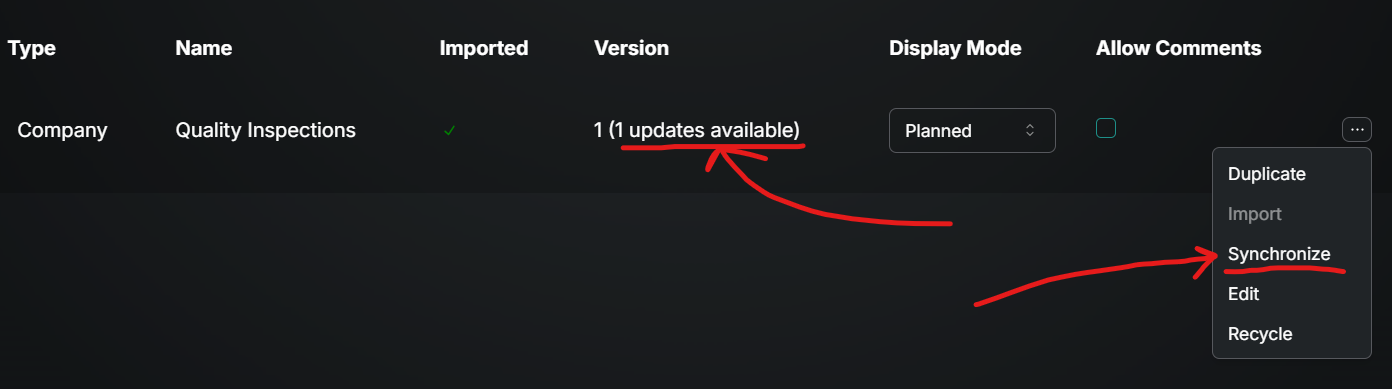
If updates are made at the company level you may update the version on your project. You’ll know an update has been made by looking in the Version column and finding (# Updates Available). Use the three dots on the far right of the screen to choose Synchronize.
Allow Comments
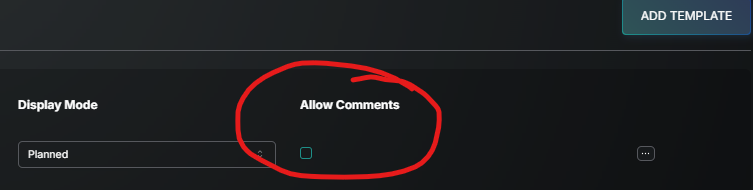
Any template can have a email/text chain style comments box at the bottom of it. This defaults to off, but can be turned on by flagging the Allow Comments box.
Display Mode
Ad-Hoc is typical, but here are the other Modes that need to be selected the first time a template is Imported.
Daily - Created for use on Daily Report templates, this is what allows the new form to open as “today” without any user input.
Planner - Created for use on the planned inspection tool (QC), this gives the View that allows Checklists to be organized into Groups and from there Default Values to carry through those groups to create inspection templates ready to go.
Duplicate Templates
Use the three dots on the far right of the screen to duplicate or make a copy of a template. From there select Edit on the newly created copy and after making changes select Publish.
Good to Know
For adding new templates at the project level check out Intro to Building Templates.
Changes to templates only affect your project (not the company level).
If creating a new tool, make that you have added it to the list of role permissions.
Was this helpful?
Still need help? Ask the team