Visibility Settings
Also known as branching, this feature can be used to hide all the unnecessary fields. In order to get the software out of the way of the process.
Written By Patrick
Last updated Almost 2 years ago
Start by adding the condition(s) that causes one of the four actions (below) by selecting the input, picking the comparison and then the value. Check out the examples below for a better idea of how to maximize form branching.
Disable
The form element will be disabled if any of the conditions are met.
Example TBD
Bake
The form element will only display inputs without value if any of the conditions are met.
Example TBD
Show
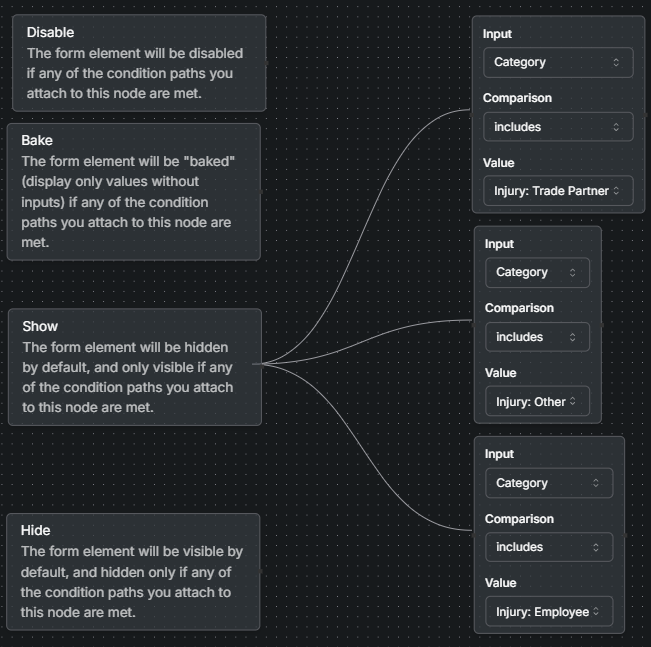
The form element will be hidden by default and only visible if the conditions are met. In the example below, the form only show the form element Injury Type if Injury Trade Partner, Injury Other or Injury Employee are selected under the Incident Category. The logic being that if there is no injury then no need to pick an Injury Type.
Hide
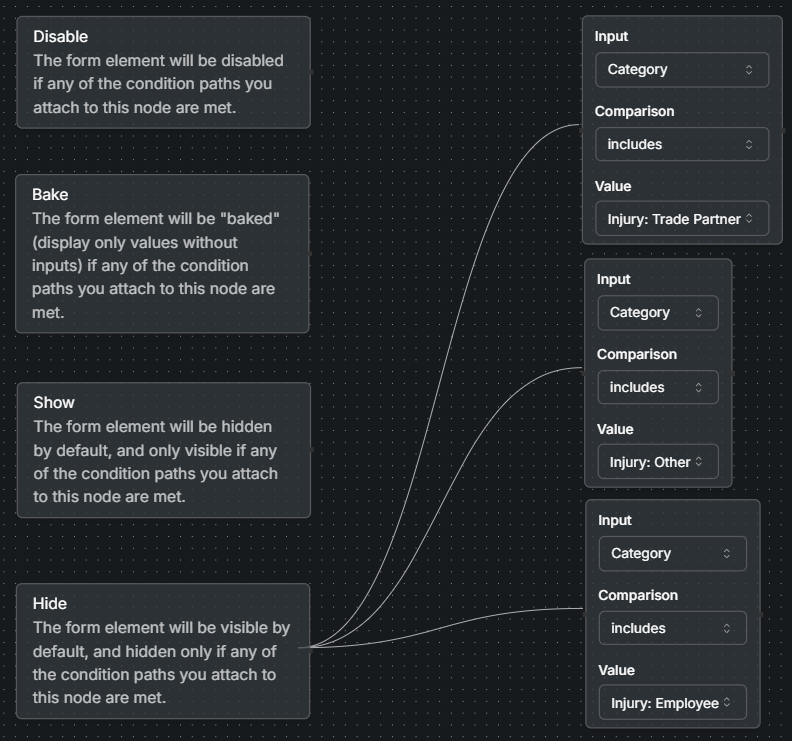
The form element will be visible by default and hidden if the conditions are met. In the example below the form element of Report only will be visible at first, but then hidden if Injury Trade Partner, Injury Other or Injury Employee are selected under the Incident Category. The logic being that if there is an injury than it cannot be a Report only so remove the field that no longer applies.
Was this helpful?
Still need help? Ask the team