Incident Reporting
Record and notify those who need to know about Incidents
Written By Patrick
Last updated Over 1 year ago
Incidents can be recorded from Mobile or Desktop, but make sure that the first section is completed right away so the key players can react promptly. This form branches based on how it is filled out, so only applicable fields visible.
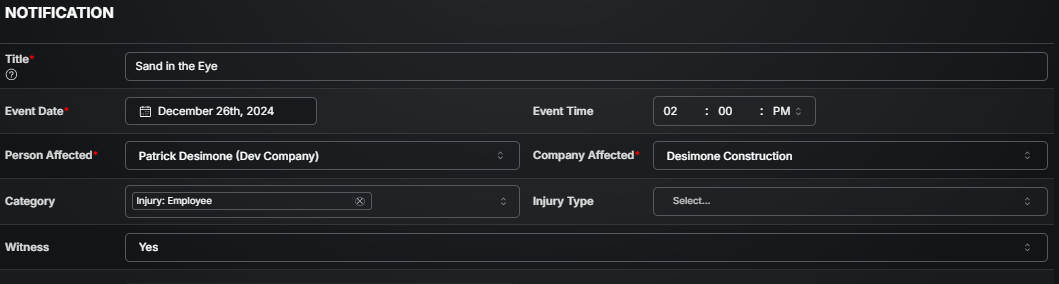
Notification Section
[Visible for All Incidents]
Only the minimum information is requested here to get notifications out quickly. In addition to those in the CC, additional notifications will automatically be sent to other critical contacts. The rest of the sections will appear after hitting Create.
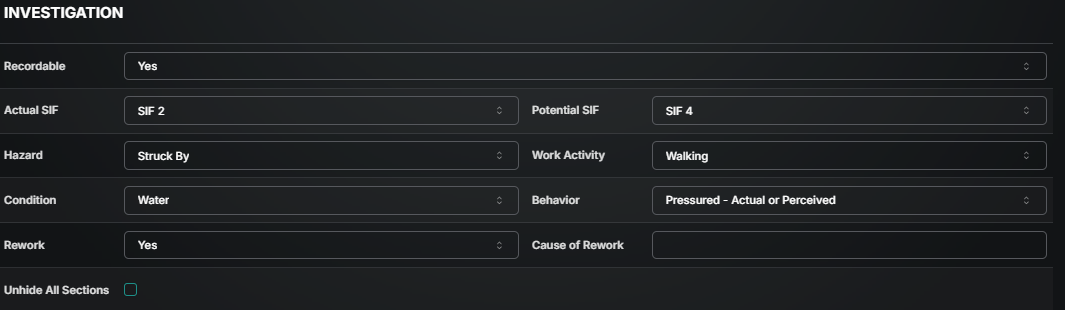
Investigation Section
[Visible for every incident except Report Only]
Now the emergent situation has been addressed, it’s time to collect additional information. This section collects critical information for finding leading indicators to help prevent future incidents.
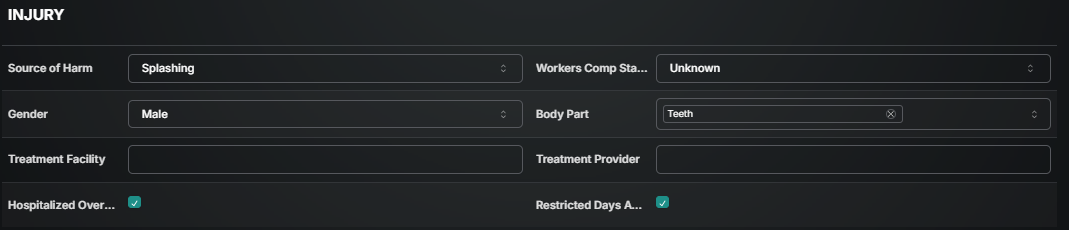
Injury Section
[Visible if Injury is included in the Category]
This section collects critical information specific to the persons injuries.
Auto or Equipment Section
[Visible if the Category of Auto/Equipment or Property Damage is selected.]
This section collects critical information specific to vehicle or equipment damage.
Visibility:

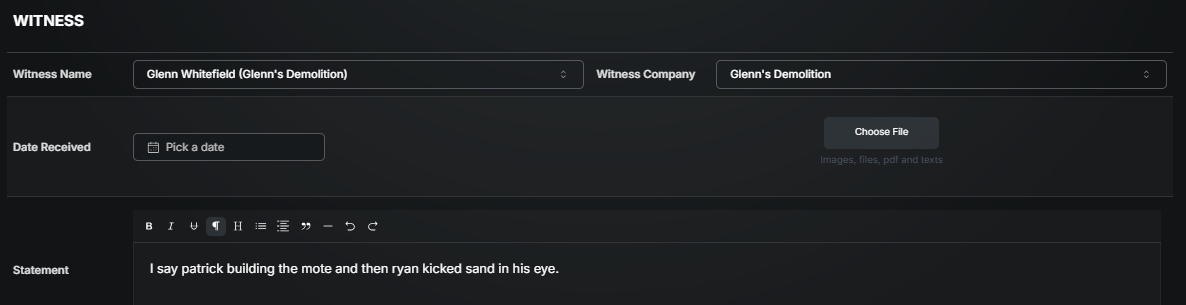
Witness Section
In the case a witness was present, this section allows for the recording or attachment of a statement.
[Visible if Yes is selected in the Witness Field.]
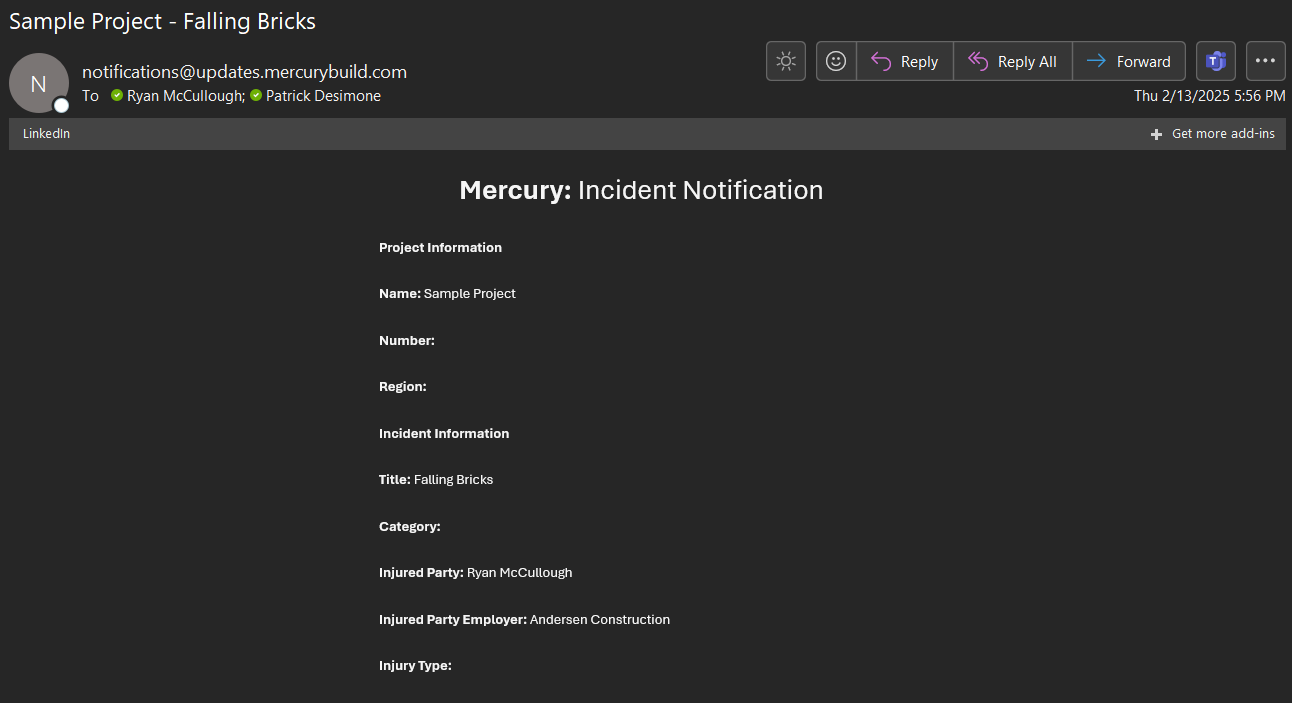
Notification Email
Email from notifications@updates.mercurybuild.com.
Good to Know
We’re just here for the technology, but Andersen and ASI employees can get more info about incident best practices on the EHS page of MAP.
Use “unhide all sections” in the Investigation section if you believe a necessary section is hidden.
Use Comments to request additional information like photo’s or statements.
Was this helpful?
Still need help? Ask the team