QR Code Creation
QR Codes can be linked to locations, inspections, punch lists or any form.
Written By Patrick
Last updated Over 1 year ago
The most common use of QR codes is for quality and equipment inspections. Once the code is printed, it can be placed near the work or on the equipment being inspected. This removes the need for the inspector to navigate through the menu and or QC plan to find the applicable checklist.
Create QR Code
Although QR codes are used on mobile devices, they are created from Desktop. Check out the video below for a visual of the written instructions here.
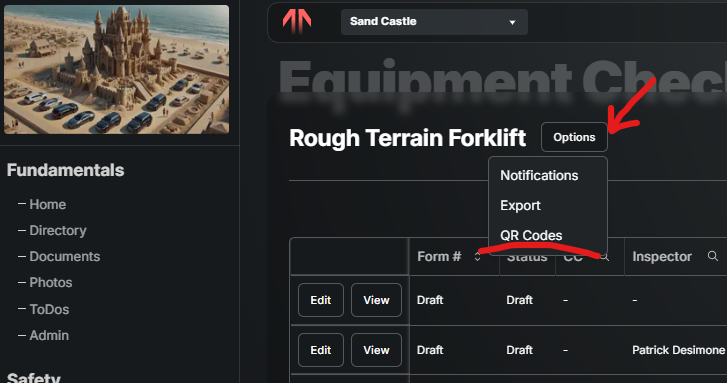
From the Tool Home screen select Options > QR Codes
Add QR Code
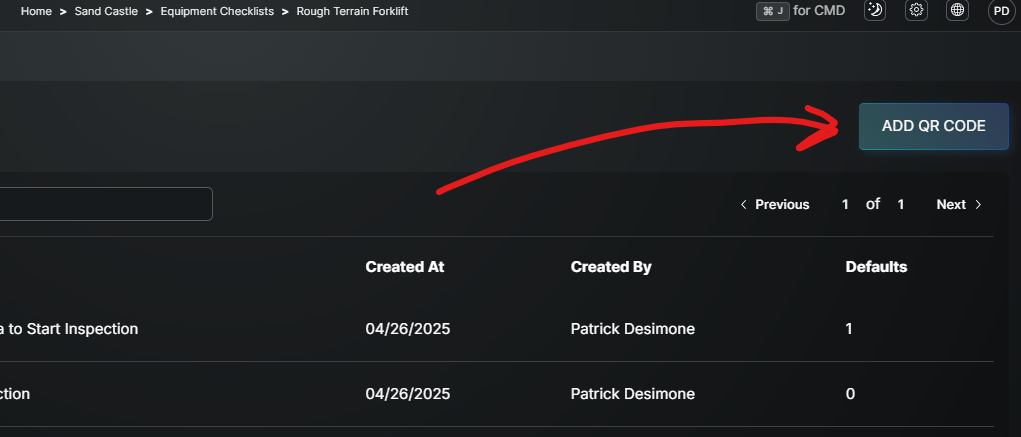
Enter Title and Subtitle (see example at bottom of article)
Add Input & Default Values - Choose the input you would like to have as a Default value when a inspection is created from the QR Code.
For Example choose the SDS Equipment ID as the Input and the for the Default value choose the ID on the Forklift you're going to apply the QR Code so that each time the inspection opens it the inspector does not need to fill out that field.
After Selecting Add QR Code, select the Eye icon from the list to generate and print the QR Code.
Good to Know
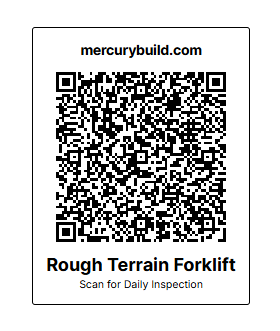
In the example below Rough Terrain Forklift is the Title and Scan for Daily Inspection is the Sub Title.
Was this helpful?
Still need help? Ask the team