Punch List V2*
The goal is not to have a punch list, but we know better. Our intent is to create punch items as quickly as someone describes what it is and puts blue tape down. Once collected the lists should be easily organized, distributed and tracked to completion.
Written By Patrick
Last updated 2 months ago
*Version 2 is still in beta and available upon request. If your project is about to start punch please use the Contact Support button to let us know, and we can turn it on for your project.
Template Items [Admin Permission Required]
Create templates to save the values that repeat on your punch walk to avoid typing them over and over on a mobile device.
Select the settings Gear next to Punch List in the menu
From the Options (3 dots) on the far right choose Manage Preset
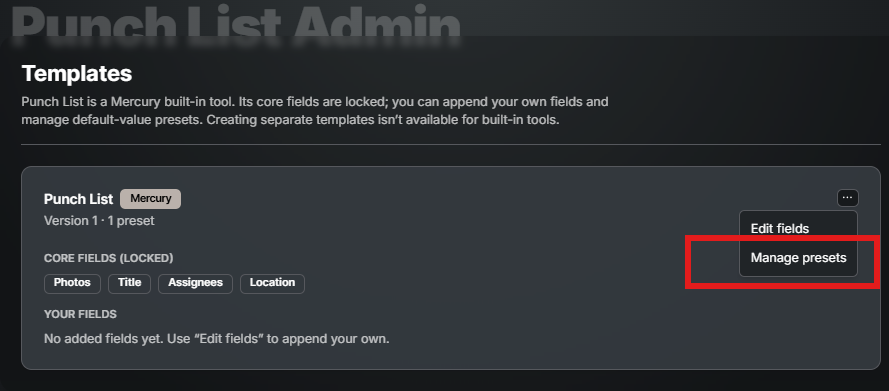
Edit the Preset Name or + Add Preset if some are already created
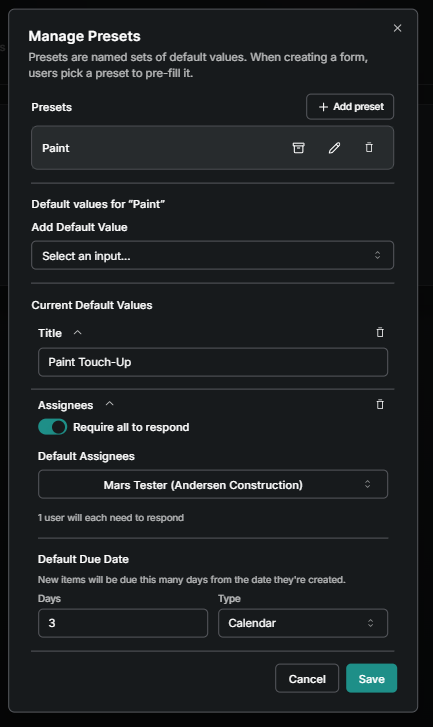
Add Default Value of Photo, Title, Assignees or Location.
Enter the Default Value
Below is an example of a Preset punch item that may be useful since there are often many. Note the title of “Paint Touch-Up” and Assignee of “Mars Test” will already be filled out for each new item created from this preset. See Create Multiple video below.
Punch Item Creation [Standard]
The most basic use of the tool, use the Default Template to create individual items by filling out the inputs. Best use is case is adding punch items that are each very different.
Tap the Plus in the upper right
Choose a template
Fill out all the inputs
Assign
Pick Location
Finish & *Publish
*Save Draft instead of publish will keep the item as Draft and not send notifications. A bright banner will remain on mobile and desktop to remind you to Publish later. Use Save Draft to reduce the quantity of emails being sent to any one person.
Punch Item Creation [Create Multiple from Preset]
Create a template that is specific to a scope of work with re-occurring items. Then use the “Create Next” toggle to copy forward the last item to save the typing.
Pick a specific Template
Take Photo
Review Inputs (ideally no typing)
Finish & *Publish
*Save Draft instead of publish will keep the item as Draft and not send notifications. A bright banner will remain on mobile and desktop to remind you to Publish later. Use Save Draft to reduce the quantity of emails being sent to any one person.
Responding to a Punch Item [Mobile]
Tap the item from your ToDo or the Punch Tool
Type a response & Add a photo (from camera roll or take one)
Choose a response
Tap Respond
Punch List Reporting
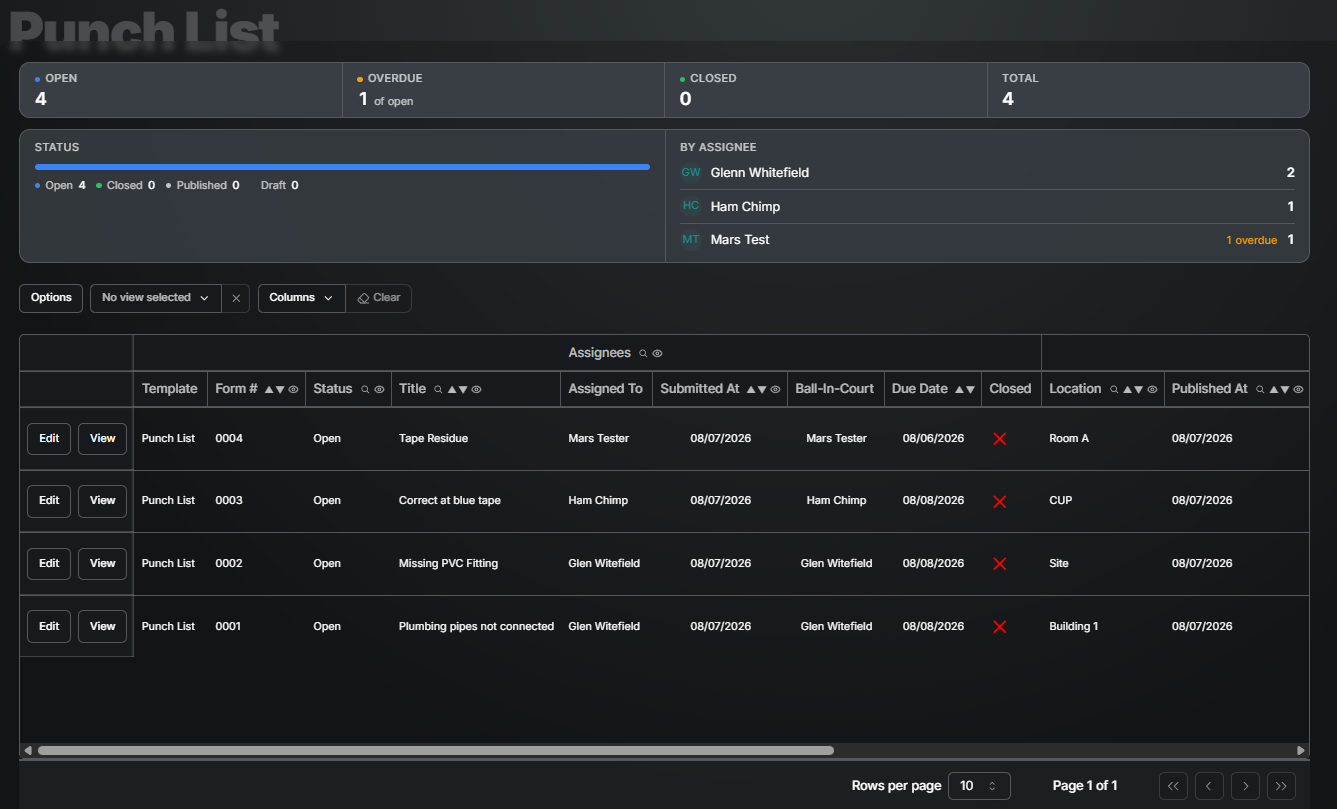
Tracking open items and their completion is the most critical part of getting punch done as quickly as possible. Below is how to sort and filter punch items to see what needs to be back checked or organized for a trade partner.
The top of the screen are metrics and the table below utilizes all the same sort, fitler, search and export options as other Mercury tool home pages. On the desktop, simply save a few views like “open items” that fitlers to OPEN status and BALL IN COURT your company name and know immediately where on site to go next. In on a phone or tablet, use the IN MY COURT filter.
Good to Know
Punch items number sequentially based on when they are published and not the template. This removes duplicate numbers.
You can search for an assignee by their name, company or scope even though only the name is on screen.
Was this helpful?
Still need help? Ask the team