Logging In
Written By Patrick
Last updated 4 months ago
1. Get Invited [All First-time users]
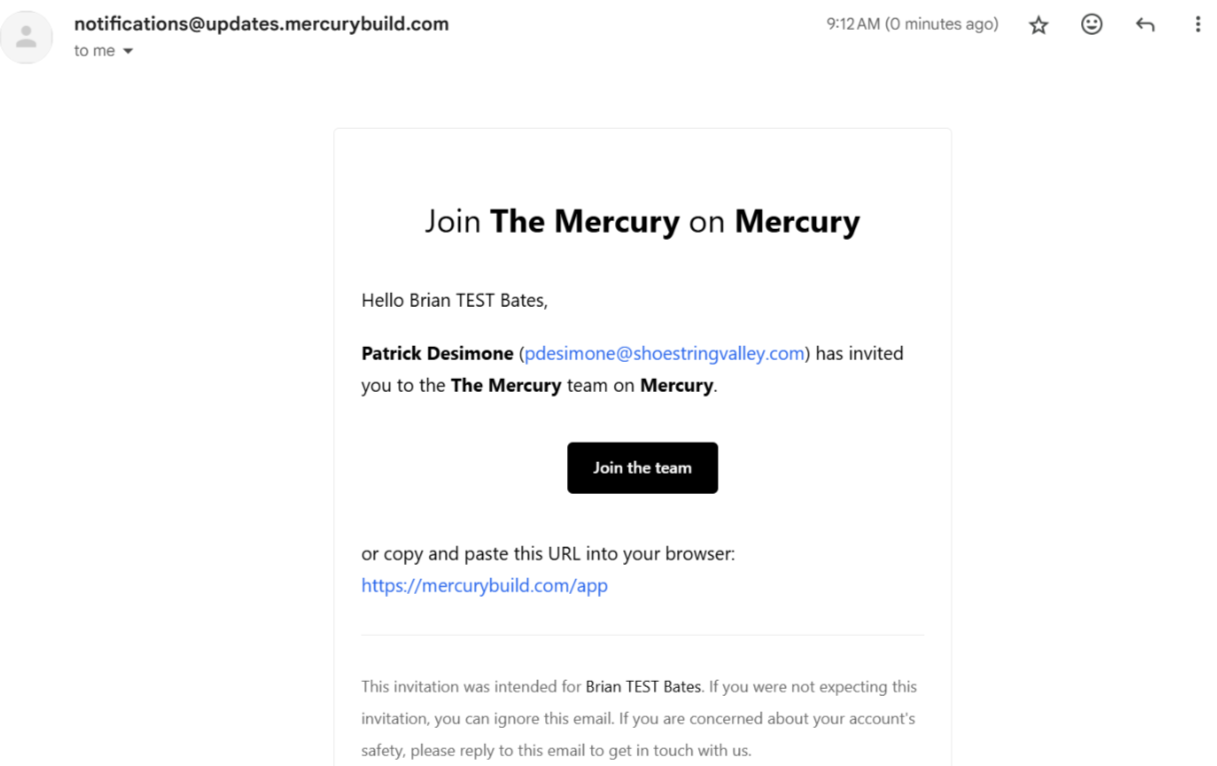
Have your favorite Andersen employee send an email invite. It will come from notifications@updates.mercurybuild.com and show who invited you (so you know its not phishing). Here’s how to Add Users in case the Andersen person is also new to Mercury.
2. Login [Trade Partners, Designers, Clients, etc.]
After clicking Join the Team in the welcome email or going directly to mercurybuild.com/app, and selecting Get Started:
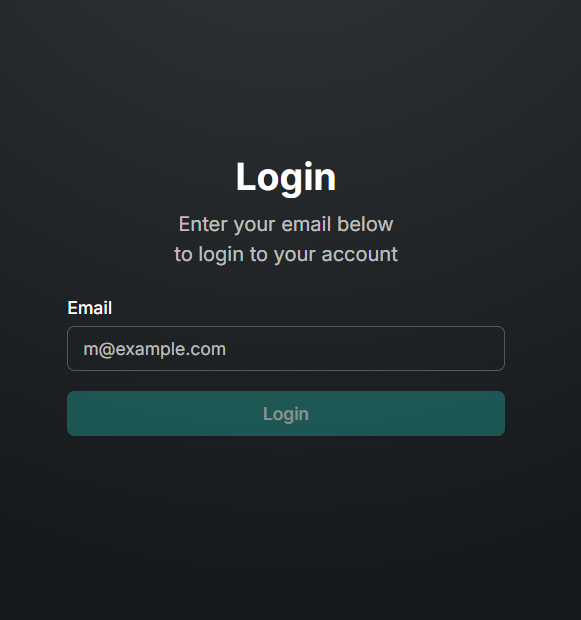
Enter your email address in the login screen and head to your email inbox right away.
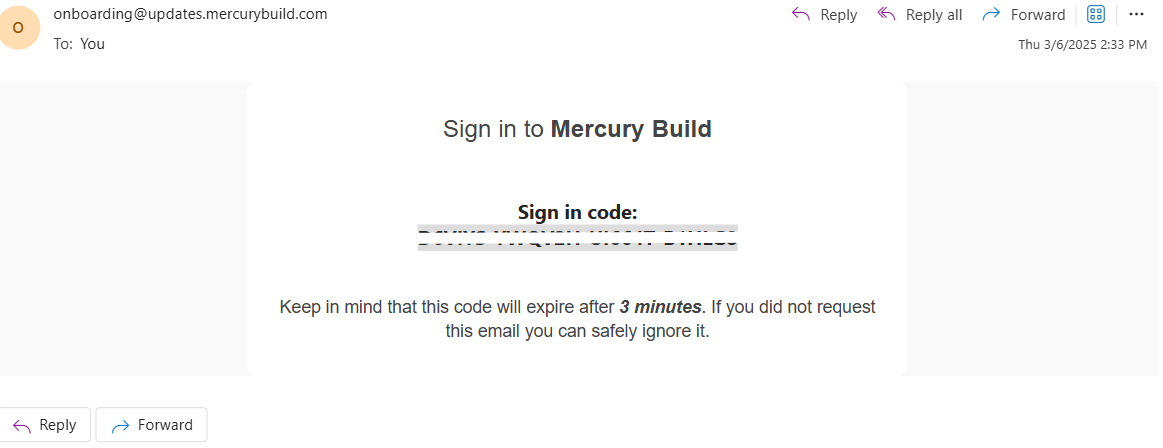
Copy the Sign in Code out of the email.
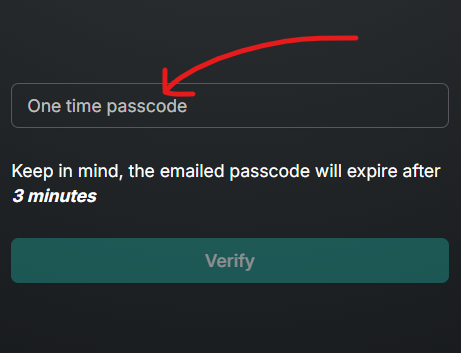
Paste the code on the Mercury login page that you just left.
Internal Users Login [Andersen]
DESKTOP: After you are invited to a project go to mercurybuild.com/app. Since we use SSO, only an email address will be required.
MOBILE: A few hours after logging into desktop the mobile app will be automatically installed on your mobile devices(s). If you need it sooner, just search “Mercury Build” in your app store of choice.
Good to Know:
We see all software heading for the direction of avoiding usernames and passwords do to the security risks associated with storing them. Some people (not you) re-use passwords and if our database is breached the bad guys won’t bother breaking into mercury, they will be spending your hard earned money online. So instead of protecting passwords, we just don’t keep any.
If a someone is invited, but loses the email, users with admin permissions on the directory can look them up and press re-invite to send them another email invitation. Keep in mind the link in the invitation email is simply a link to the Mercury login page, so if the invitation emails are lost, just got to mercurybuild.com and select Get Started.
Was this helpful?
Still need help? Ask the team