Notifications
Find out when you are emailing everyone from Mercury.
Written By Patrick
Last updated 4 months ago
Too many notifications are bad, but no notifications are bad. We tried to find the middle ground with the notification settings outlined here.
NOTIFICATION SENT:
Assignees when the form is published
When something is re-assigned the person receiving the ball.
When a user is listed in a form (CC or Attendee) a notification is sent when published only.
When using the Distribution button (duh).
REMINDER NOTIFICATIONS FOR ASSIGNED ITEMS SENT:
5 Days before if Due Date is over 5 days from Publish Date
3 Days before if Due Date if less than 5 days from Publish Date
No reminder if Due Date is less than 3 days from Publish Date
NO NOTIFICATIONS SENT
*Forms in Draft even if there are assignees.
*When Draft forms are updated.
*To Assignees when other parts of the form are changed/updated.
Adding to a CC list after a form is published. Use Distribute if you need a notification after publishing.
*Each user has the choice to subscribe to Form Updates and in that case they would receive notifications when these actions happen.
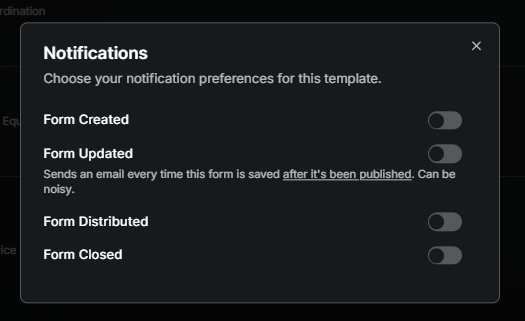
Subscribing to Notifications
If you would like notifications regardless of being mentioned in a form or the rules above, use the notification button on the tool home screen to toggle on notifications for Form Created, Distributed, and Closed. These setting only apply to the person who is logged in (you) and not the whole project.
*If you are the Creator and subscribed, you will not get a notification…you created it, so no need for an email. See the Event Driven Notifications section below for more options on notification subscription.
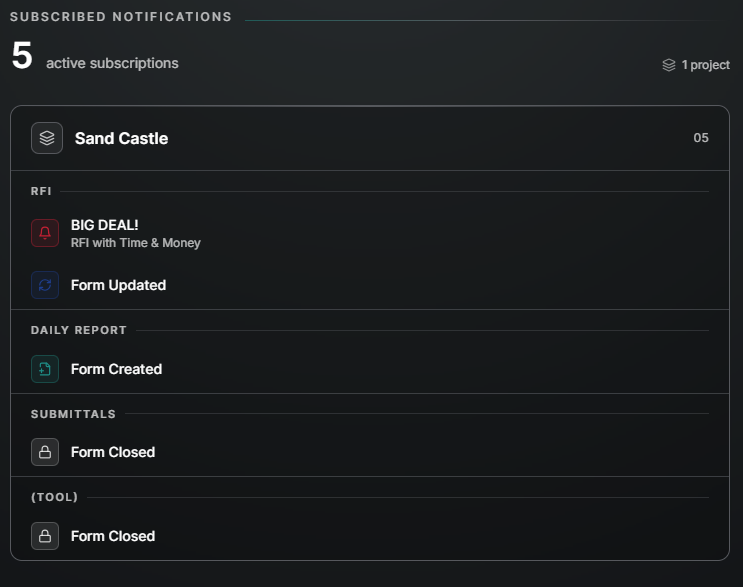
Notifications by Event
In addition to the subscriptions above, event specific notifications based on how a form is filled out can be created by a project Admin. In the example below a notification was set to send if the Cost field of an RFI was over a certain value AND there was a schedule impact.
Subscribing to an Event Notification
Create a Event Notification
Unsubscribe from Notifications
If you have turned off a subscription and now what to turn it off, from a project, select your user initials in the far upper right and then choose Subscribed Notifications. From there you’ll see the list of notifications grouped by Project. Hover over the right side of the rows to remove.
**You cannot unsubscribe from notifications listed at the top of this article.
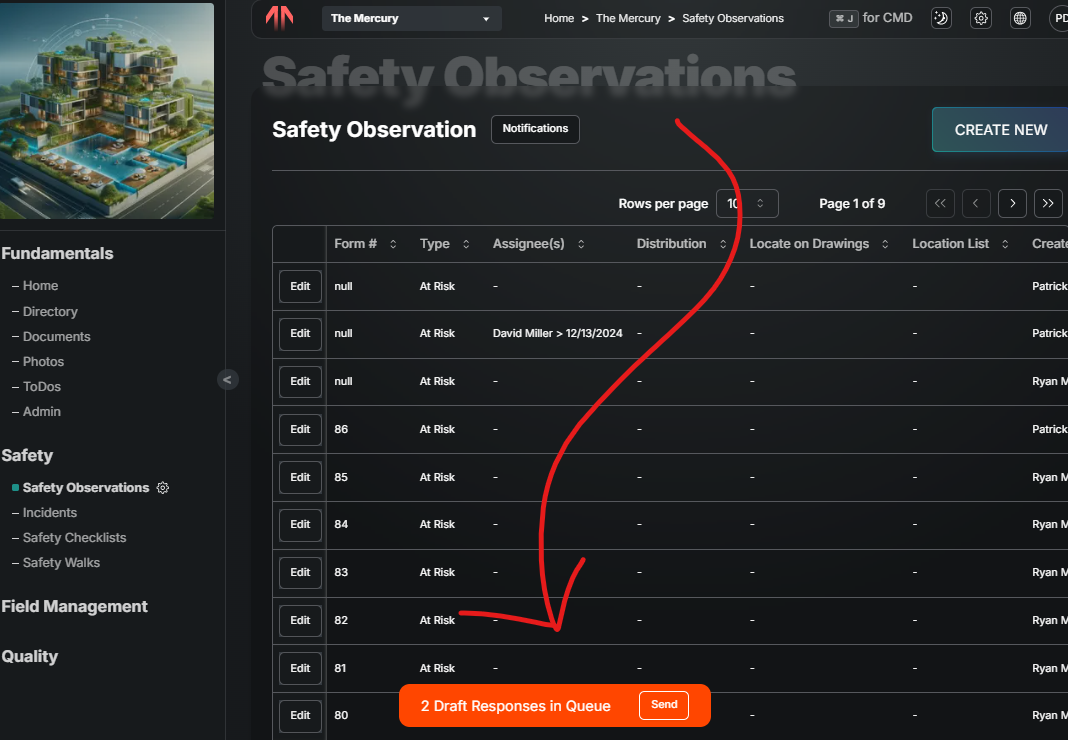
Observations from Checklist Notifications
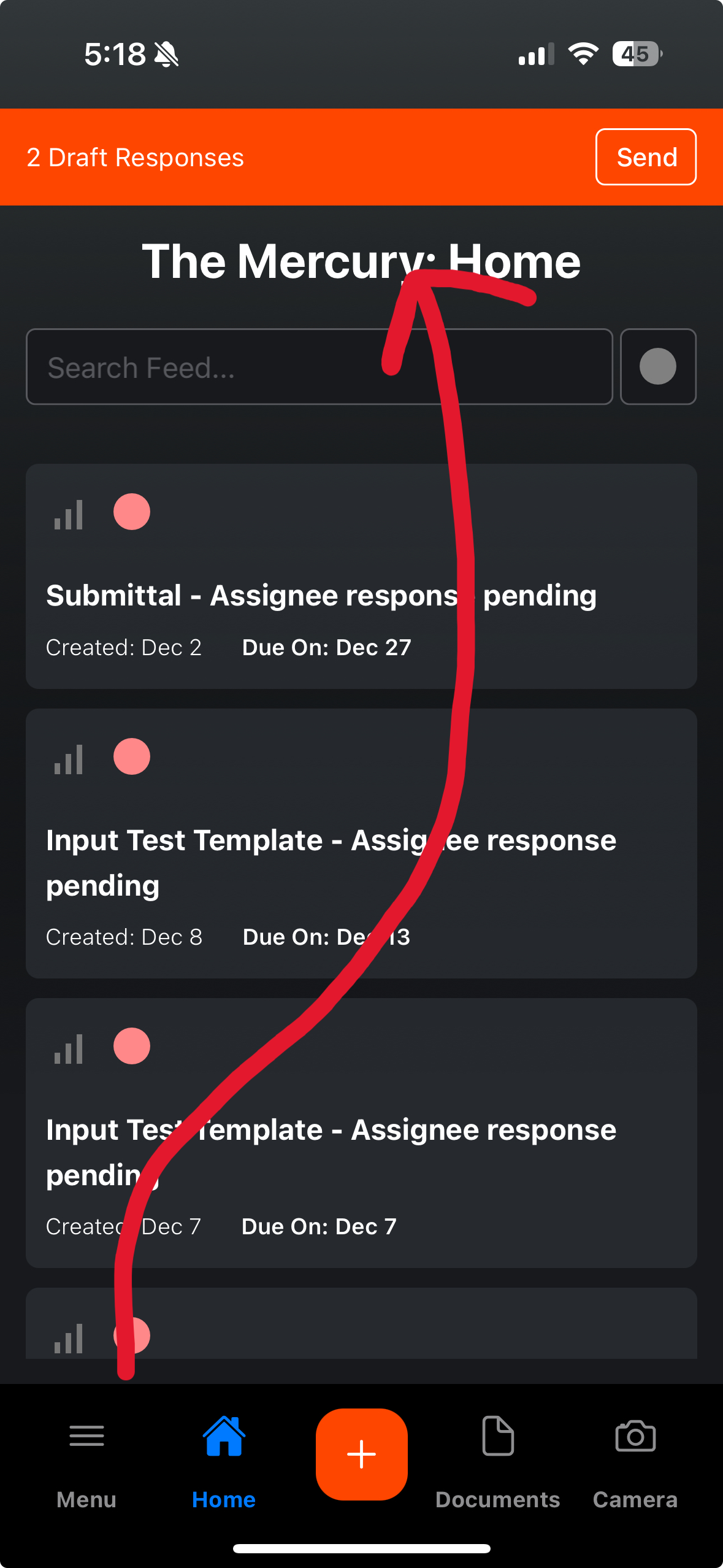
Observations created from a Checklist default to Draft. All the Draft Observations are collected to be sent all at once. A bright banner on desktop and mobile remind you the Observations need to be sent. If there are multiple observations for one assignee, they will be compiled into one notification that lists each item in the body of the email.
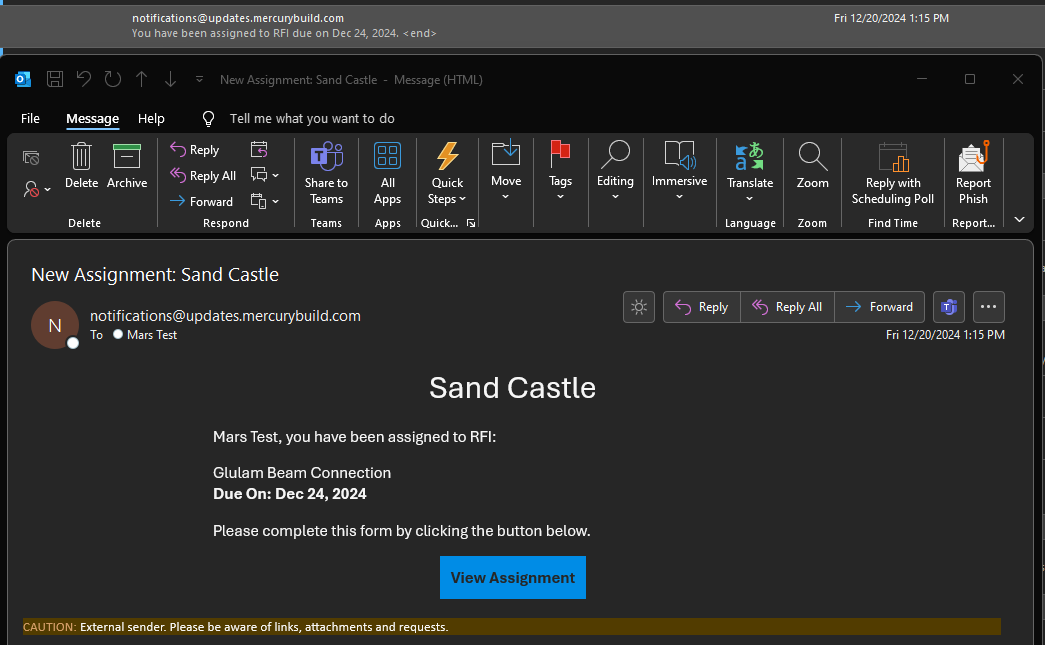
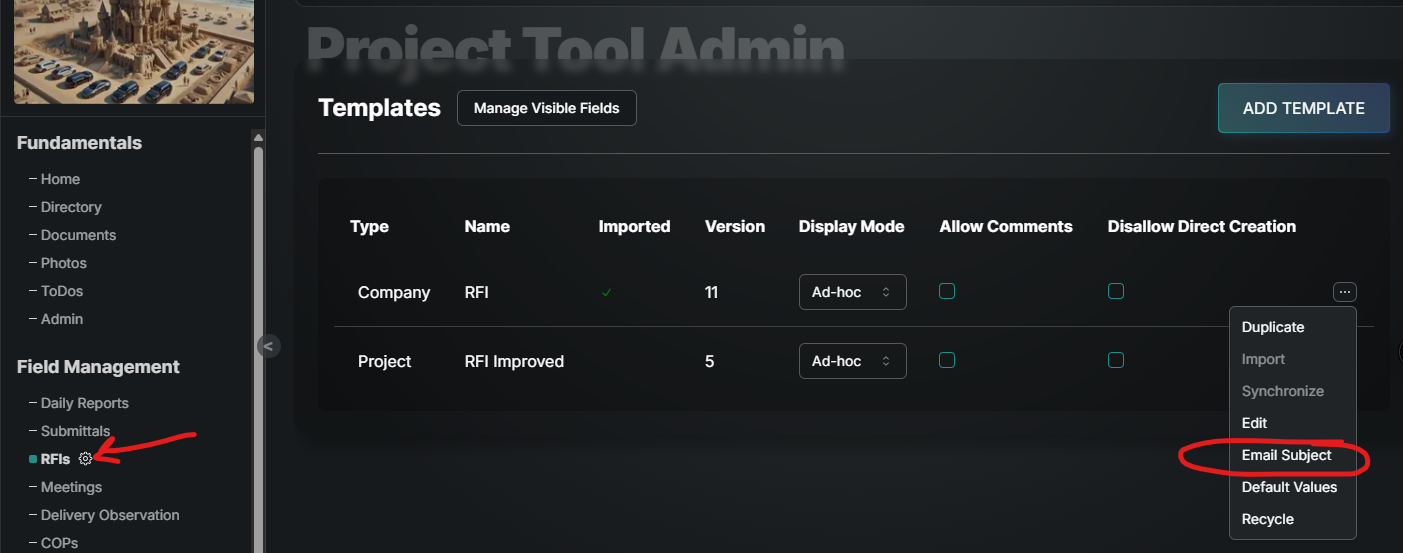
Customize Notification E-Mail Subject
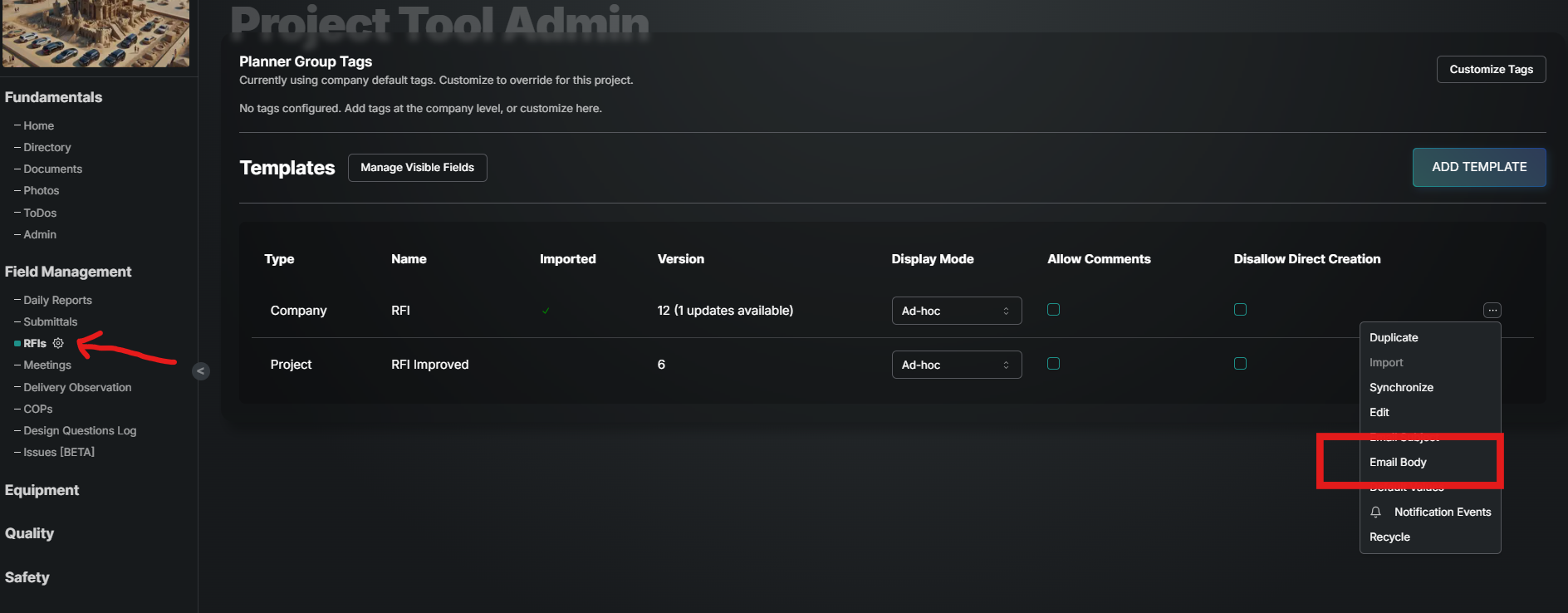
From any tool, go to the settings gear and select the options dots next to the template you’d like to customize notifications and then select Email Subject.
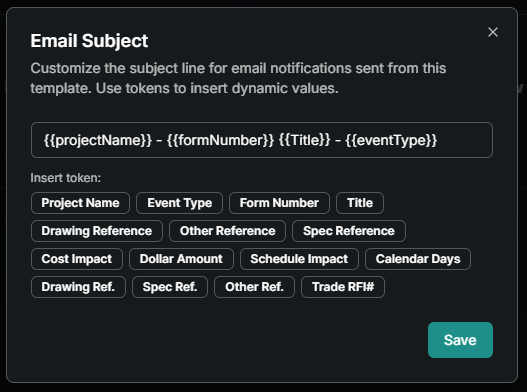
From here you’ll find a token for each input in that template. Select the input you’d like to show up in the email subject, then add any formatting between. Event Type = Assigned, Closed, Distributed etc.
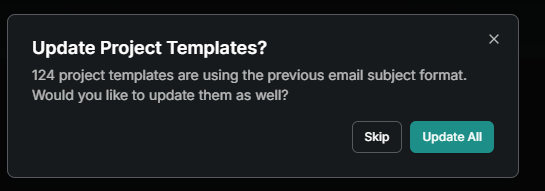
**Company Admins can do these same steps to update ALL templates.
Customize Email Body
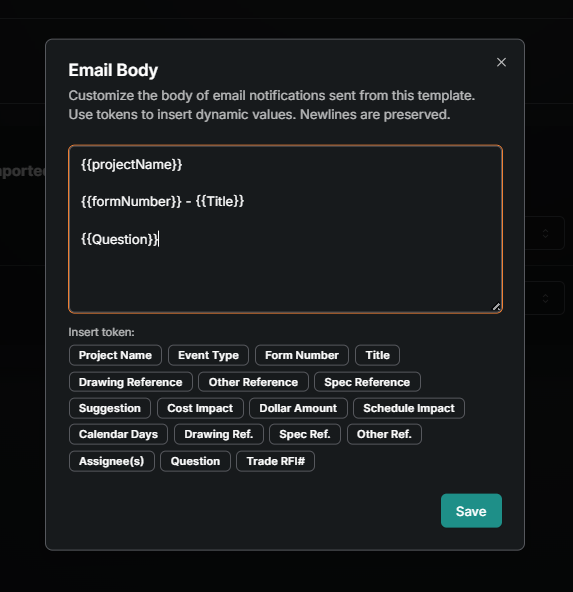
To change what information is included in your email notifications follow the steps below. Event Type = Assigned, Closed, Distributed etc.
From Tool Settings select the 3 dots next to the template in need of a custom email body. Then select Email Body.
Use the text box to layout what the body of the email will look like. Select the inputs that need to be pulled from the template (tokens) and inserted into the email. Add any text or formatting in between.
Document Notification
Check out how to send an email when drawings or specs are updated in the this article.
Document Distribution
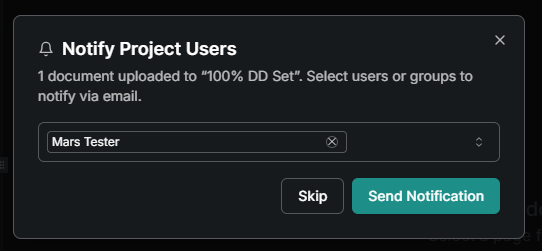
When uploading new drawings or specs, use Notify Project Users to send them and email. This window appears after selecting Upload and includes the groups and users in the project directory:
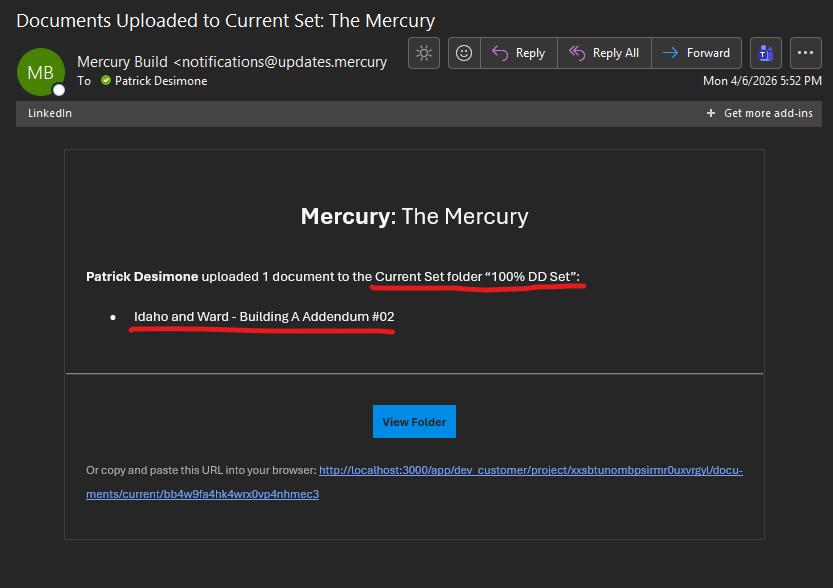
The notification will look like this with who uploaded it, the name of the folder and the file name of the document. At the bottom is a link to open it in Mercury or directly in PDF.
GOOD TO KNOW
Event Types are the reason for the notification and what the subject or body will display
Created
Updated
Distributed
Closed
Amended
Was this helpful?
Still need help? Ask the team