Meetings
Record all the notes while in the meeting and distribute easily.
Written By Patrick
Last updated 2 months ago
Meeting minutes is an area where people have stronger preferences. Feel free to import our template or just make your own, but here’s how they work.
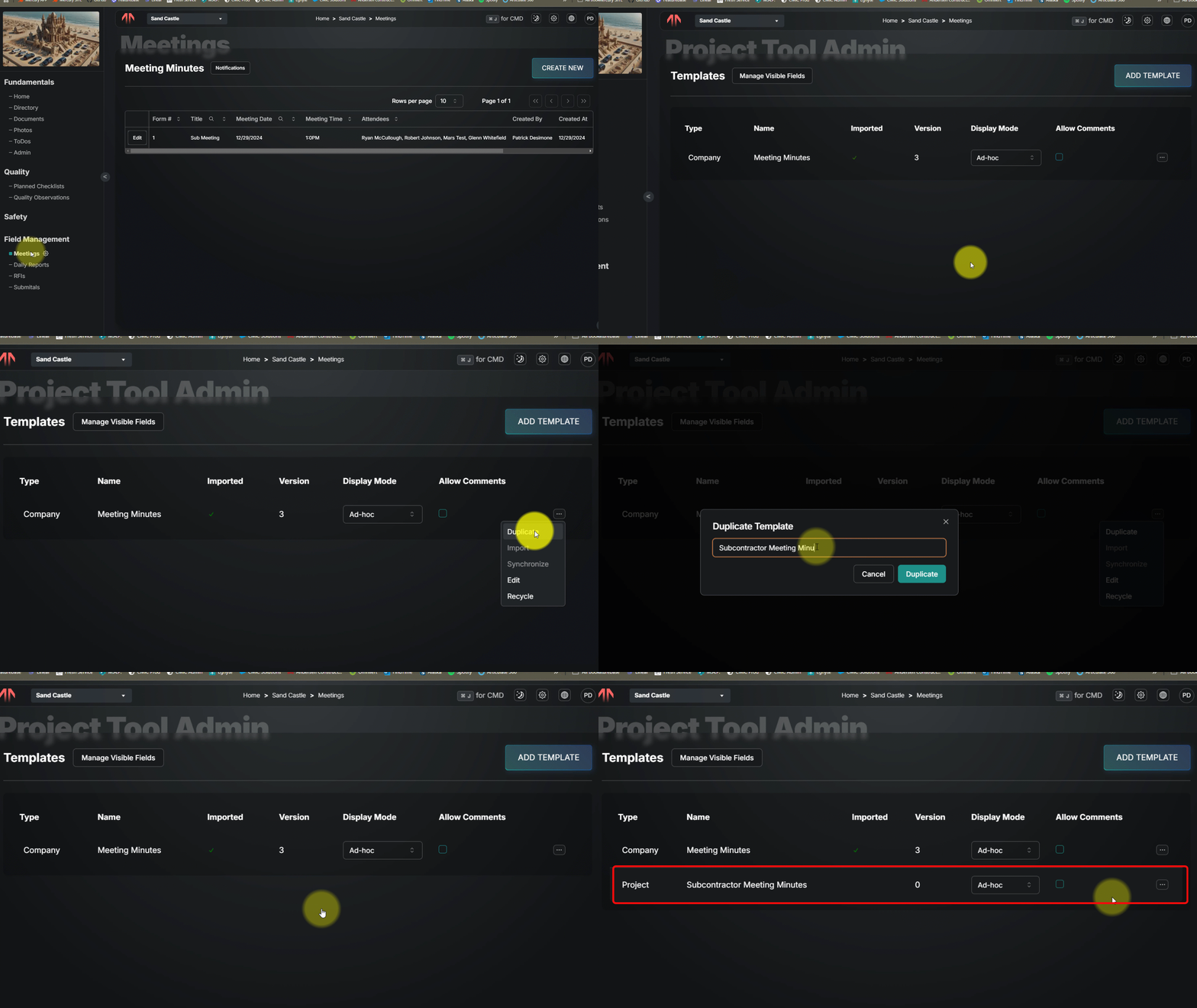
Create Meeting Specific Templates
Each meeting will needs its own template (OAC, MEP, SUB etc.) At the start of the project import the company template, duplicate it, and then customize it for your needs. OR use one of the company-level versions. Either way be sure to update permissions to that template is you do not want everyone in the directory to see it.
Taking Notes
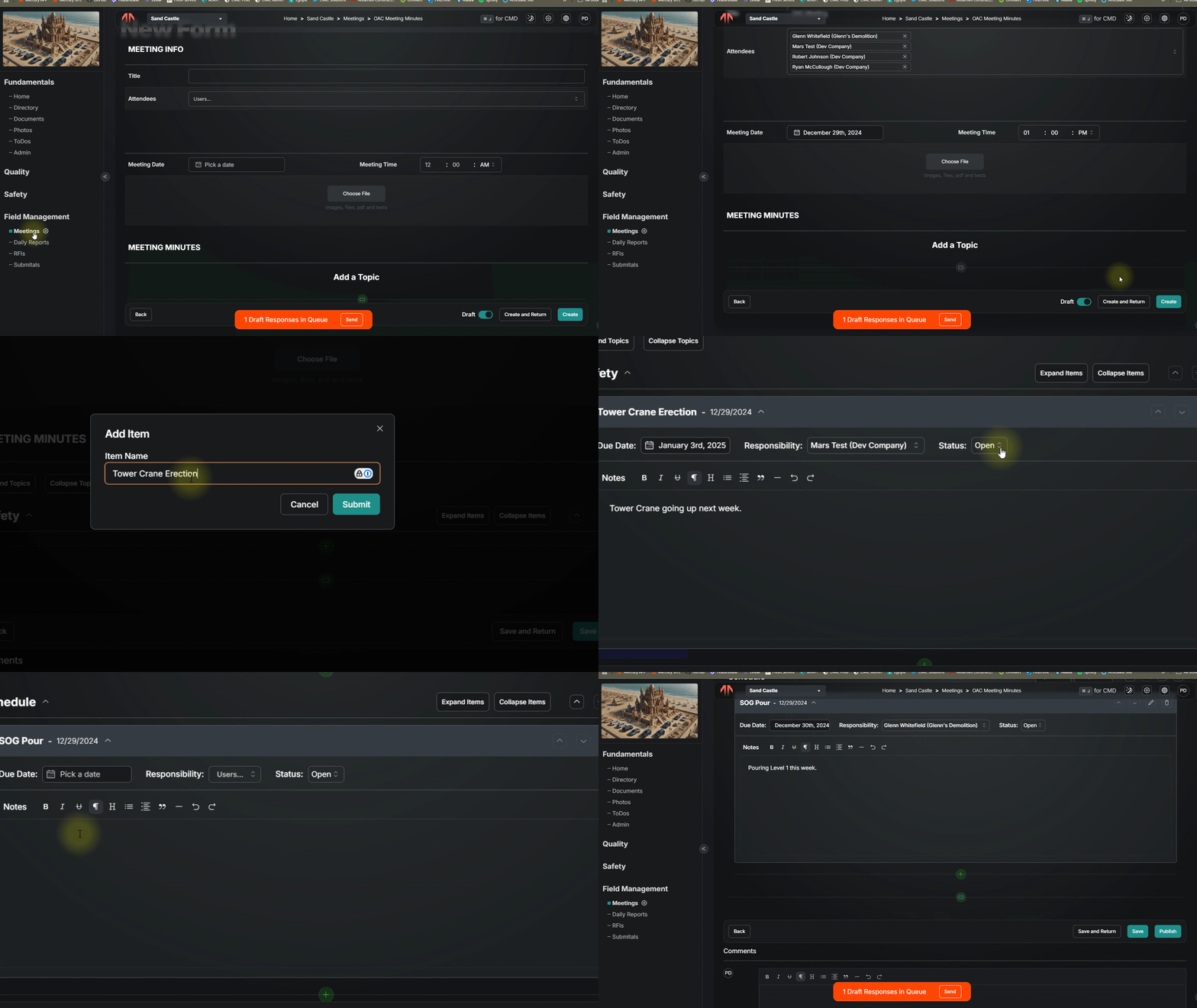
Meetings break down into Topics as the parents and Items as the children. Responsibility and due date can be assigned in each item. The person assigned will get notified and have a To Do item added to their list. That To Do item can be closed on their side, but will not come off the minutes until the item is closed. Files can be attached to individual items as well.
Distribute
Like other forms, simply Publish and then Distribute to share minutes. An email will be sent with a link to a pdf export. Learn more about Distributing a form.
Create Next Meeting
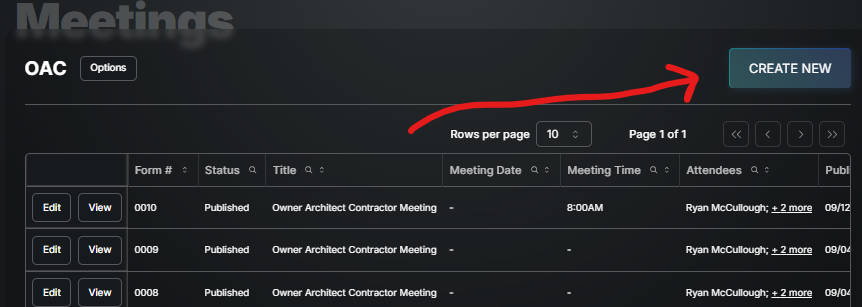
After your the meeting has been Published (you will see it in the list of forms), the next step is to select Create New. That will generate a new form with the next sequential number, Notes ready for update, etc. The meeting Title and Attendees will carry forward to the next meeting but can be updated.
Views & Exports
Simplify both the View while taking notes and the export for sharing by using the View drop down.
Previous Notes Limit
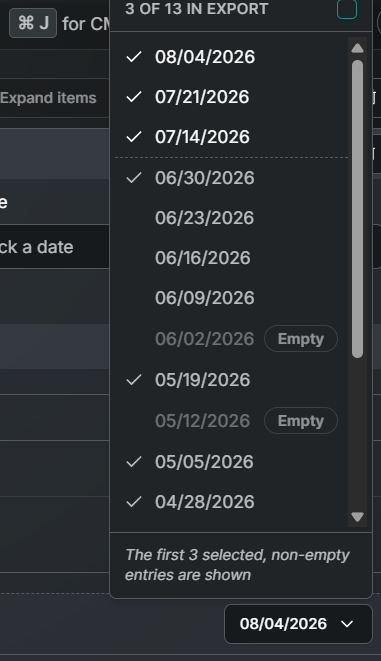
Too many notes showing on screen or in the export? We got you. Use the pencil icon in the Topic to set a limit for every item under it and/or set a limit for each Item. This will limit how many previous notes on screen are shown and whatever is on screen will match the export.
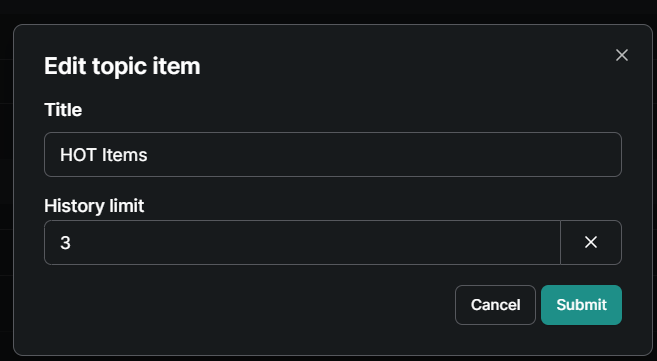
In case there are specific periouse notes needed to be displayed, select the date on the most recent set of notes and check only the ones you want to show. The limit set will still be acknowledged.
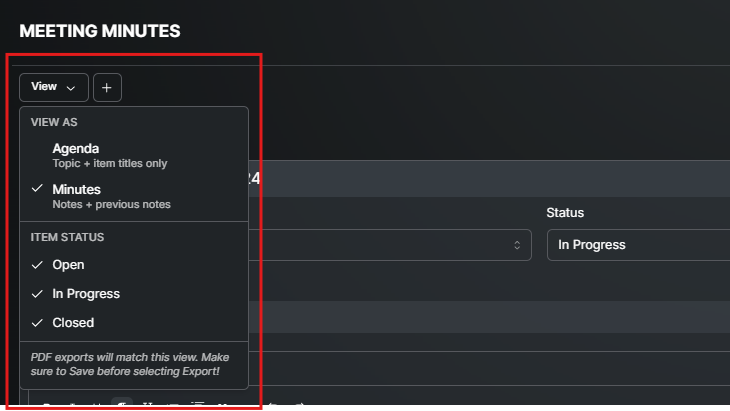
VIEW AS
The Agenda option will hide everything except the Topics and the Item labels for a concise overview of what will be covered in the meeting. Minutes is intended to expose everything to make note taking easier or provide all the details in an export.
ITEM STATUS
This really just a filter remove the Closed items or only look at In Progress to make the notes as detailed or high level as you want.
EXPORTING
The Options Export button will produce a PDF that MATCHES THE VIEW on screen. Therefore if you want to show more or less in your PDF, just change the view prior to exporting.
Good to Know:
Prior to your first meeting, enter all the topics ahead of time to set the agenda.
Closed items will stay for one more meeting after they are closed and then drop off past notes.
The Meetings tool is mobile too!
Was this helpful?
Still need help? Ask the team