Tool Home Page [Form Table]
Time saving or helpful features to be used while using the app on your computer.
Written By Patrick
Last updated About 2 months ago
Form Table Filters & Views
Most columns in the table has tools to sort, filter or hide. After making one of those changes the +Save View will appear. Here are the steps:
Hide, Sort or Filter columns with the icons in the column header or from the Columns button. Columns marked Inactive are inputs that no longer exist in the current template, but have created forms.
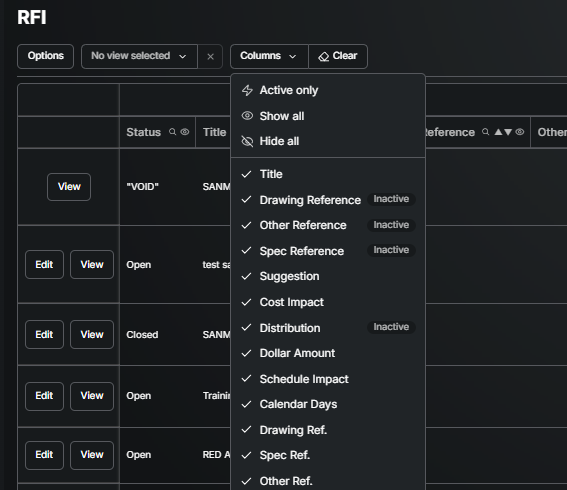
Select +Save View & Name it
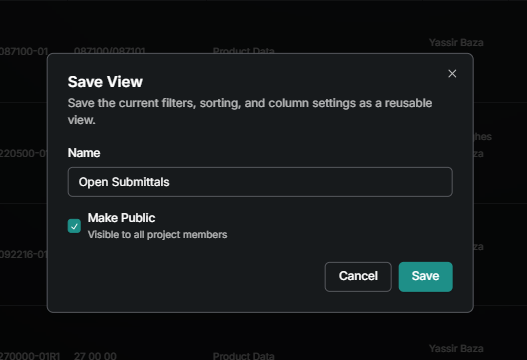
Admin Users can share the view with all users on the project by selecting “make public”.
When there are multiple saved Views, the user can Set a Default so that when first landing on the tool that view is open.
Reset Filters to create and save a new view
Filters can be renamed, deleted or made default at any time.
Voided forms are hidden by default and can be viewed by clicking View Voided under the Options menu of any form table.
Saved Set
Filling out a form with nearly identical info many times a day or week? Follow the steps below to grab a form that has already been filled out to populate the next form created. That way only the changes have to by entered instead of the entire form.
These saved forms will only be saved for you.
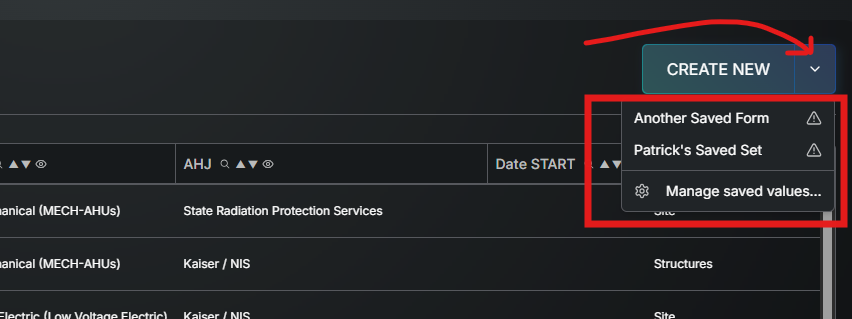
Use the Managed Saved Set option to change the label or delete
The hazard symbol means the form that was saved is from an older version of that template and therefore may need to be updated (but will still work).
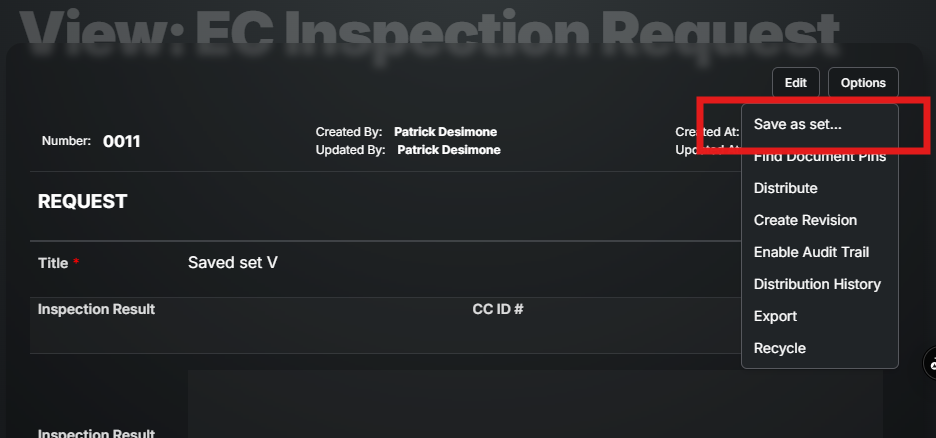
Open any Draft of Published form and under Options select Save as Set… and give it a name.
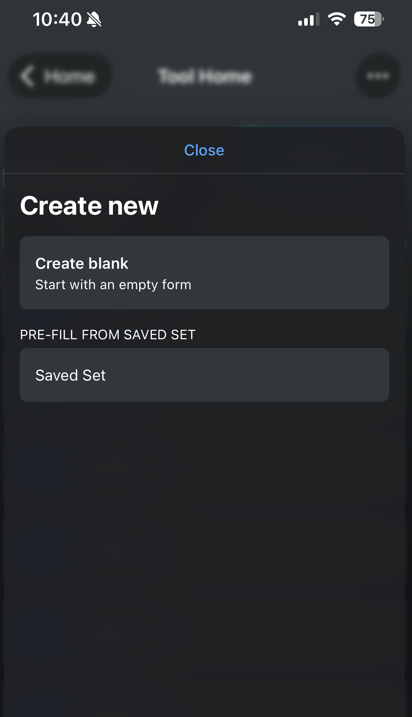
* The next time you go to Create New for that template that Saved Form name will be under the drop down arrow. Then all of the text and selections in that form will be entered from the start and only the fields in need of updating need to be touched.
*On Mobile any form with a Saved Set will give the option below before Creating New.
Good to Know
When there are multiple templates (an example of this is Safety Checklists), use Manage Visible fields in the tool home to turn on or off columns (of inputs in the temples) that are common amonst the templates. Manage visible fields can be found under the Settings Gear icon next to the tool name in the menu.
Was this helpful?
Still need help? Ask the team