Quality Inspections
Complete a quality walk by starting with a list of checkpoints or make an observation on the fly.
Written By Patrick
Last updated 3 months ago
In Mercury, there are Checklists and Observations. QAQC checklists will have been created with the planner tool at the start of the project and therefore ready to use. To create an inspection start with the Planner tool or use a QR Code.
Planned (QC) Checklist
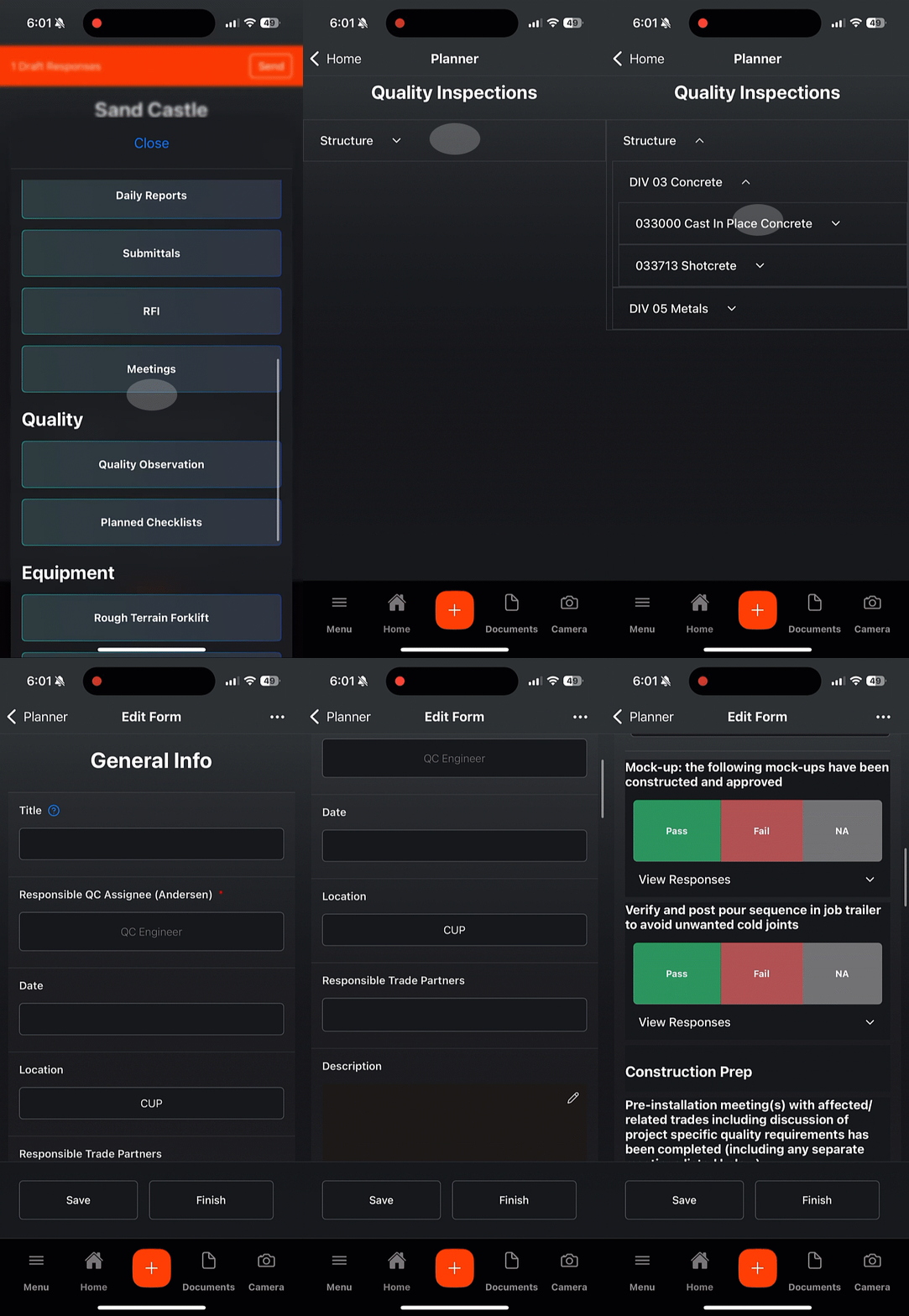
Under Quality, choose Planned Checklist.
Find the group or sub-group you plan to inspect and expand it to the point you find Create Form. QR codes can be created to link to an inspection as well.
Most of the header will be filled out, but add anything missing and save. Then complete your inspection by marking pass, fail or NA. See the next section for how Observations are used to resolve Failed checkpoints.
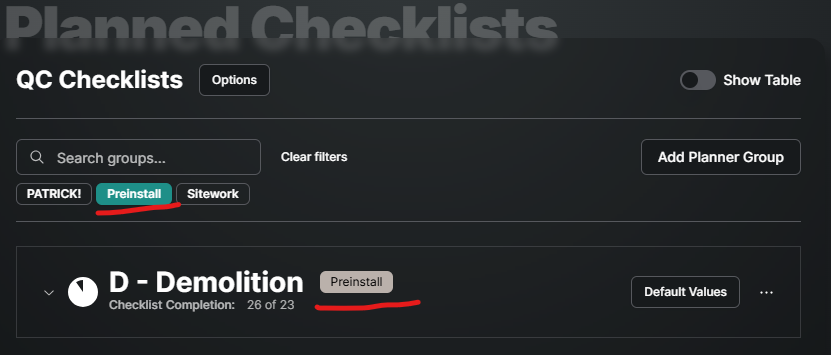
Planned Checklist Tags
The search box applies to text, but tags can be used as well. Just select the tag that you’d like the list filtered down to. ONLY TAGS USED IN THE PLAN WILL APPEAR IN THE FILTER.
QC Observations
Observations are what tracks the who, where, what, when and why. It’s the most important part of making sure deficient items are corrected and tracked along the way.
Observations on Pass are Optional

Create Observation From a Checklist Item
Take a photo
Type description
Assign Responsible Party
Finish > Publish or Save Draft
Respond to an Observation
From the ToDo list, Mobile Home Screen or QC Observation tool, select the observation in your court.
Based on the description and photo make the correction and upload a photo and response.
Hit Continue
Quality Metrics
This is a dashboard to quickly see the health of the quality on site. Select any of the 4 metrics to see a list below of what is included in them. Each row in the table will link you to the specific item.

Overdue Corrections - Number of QC Observations currently overdue (open and past the due date). Does not include drafts and could include Passing.
Incomplete Preinstall - Metric TBD.
Deficiency Reporting - Quantity of Deficient QC Observations made within the last 30 days. Open or Closed status does not affect this number, so closing observations does not decrease the number.
Depth and Quality - Quantity of Observations made within the last week. The table shows the checklist and how many observations (interactions) were included in that checklist.
Good to Know:
It is intentional that QC Observations cannot be made on the fly (like in Safety). All observations must be connected to a checklist in order to track QC metrics like completion, so to create an observation Pass or Fail must be selected on a checklist item. And you thought we missed something.
The NA option does have a value of 1 to contribute toward percent complete. It also is either On or Off, so if it is pressed by mistake it can be pressed again to make the checklist item active again to press pass or fail.
Was this helpful?
Still need help? Ask the team