Permissions
Control visibility and other CRUD.
Written By Patrick
Last updated 25 days ago
Admin level permissions on the Directory tool are required.
Permissions boil down to four things: Create, Read, Update, and Delete (CRUD). Those traits can be applied to specific Templates or entire Tools. With great power comes great responsibility, so be aware of the consequences of your changes before you make them.
Standard Project Permission Roles
PE/PM - Project Engineers and Project Managers
FOR/SUP - Foreman and Superintendents
OWNER - The owner or client for the project.
ACR/ENG - Architects, Engineers and other Design consultants
TRADE - Trade Partners and Vendors.
EHS - Andersen EHS Field Staff.
Creating or Modifying Permission Roles
Create New Project Level Role: From the Directory, go to the Roles tab and select ADD role. If the role you are creating is similar to an existing company role, use the Duplicate option in the upper left for a starting point and make changes from there.
There are three tiers of permissions and here they are in order from least granular to most granular:
General Permissions: Applies to all Fundamental tools that are included with every Mercury Project.
Tool Permissions: Applies to each tool and all the templates within it.
Template Permissions: Apply to specific templates. Use this to allow access to a Tool, but not all of the Templates under it.
Start with General tool permissions, choose which options to include by checking the box, and then add granularity with Overrides on the Tools and Templates. These Overrides add or remove permission based on what is selected on the General line.
In the example video below the For/Sup role will has all access except Admin on all tools except for the ones listed there is all access plus admin. If a tool were too be added with no boxes checked it would remove that tool from the menu all together.
Permissions by Input
If permissions by template is not granular enough, each input can have Editing allowed or denied. An example would be the need to allow anyone to create a form, but limit who can fill out specific fields. All of this is doen in the template editor. Check out the Input Permissions section of the Building Tools article.
Applying Permissions
From the Directory, find the user and choose the Role from the drop down menu. That drop down will be the Standard Roles. Don’t see a Role in the list that fits? Create your own role.
Document Folder Permissions
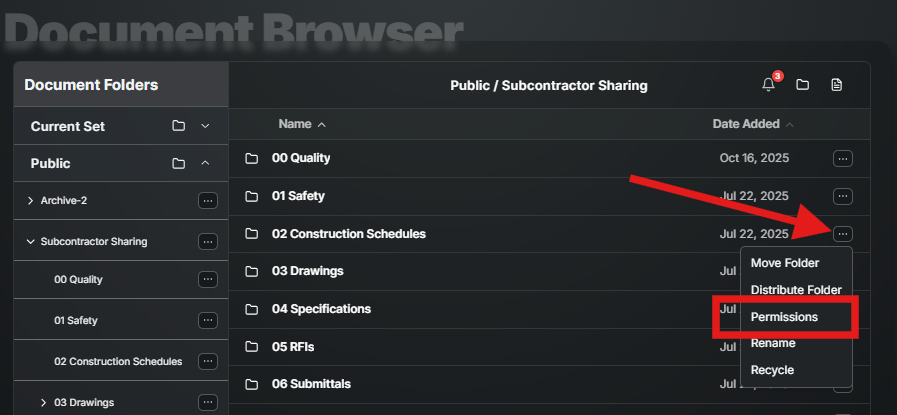
In there is a need to allow or deny visibility of a specific folder or folders, the three dots on the far right for Options include Permissions.
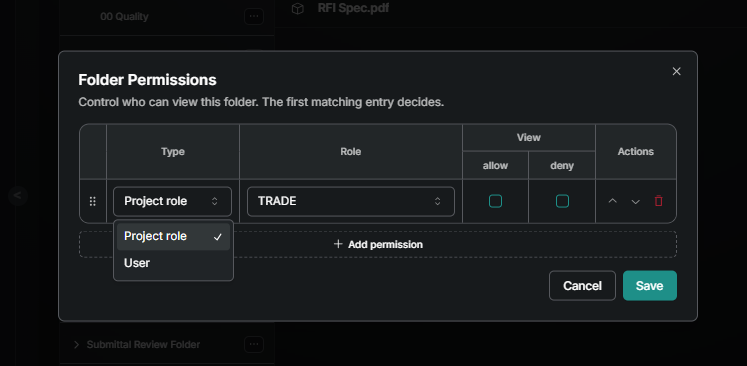
Once there, the project Permissions Roles can be used to control who can see or not see a folder or specific users can be entered.
Current Standard Project Role Settings
Below are the detailed settings for each of the Standard Roles. The Role name is shown at the top and the General and Tool Permissions are underlined. Template level permissions only apply to OWNER, TRADE and ARC/ENG for Meetings to make OAC Minutes available to OWNER and ARC/ENG and Trade Meeting Minutes available for TRADE.
Permissions Table 2026.07.01.xlsx
15.5 KB• Spreadsheet
Good to Know
Any changes made to permissions or most anything else on a Project, will only affect that project. The exception is adding a contact to the Project will make it available to all other projects.
If you add a new tool or template then don’t forget to open up the permissions to use it!
Only users with permission to view the form will appear in any user lists. For Example: You could not assign a safety observation to the architect who cannot view safety observations.
Photo Albums: Albums are automatically created for every tool that includes photo’s. Those photo albums can only be seen by users with permission to view that tool.
If a user has permission to Publish they also have permission to Distribute.
Was this helpful?
Still need help? Ask the team