Reports
Run and distribute reports on any tool!
Written By Patrick
Last updated 3 months ago
PROJECT REPORTING
From any tool home screen select Options and then Reports
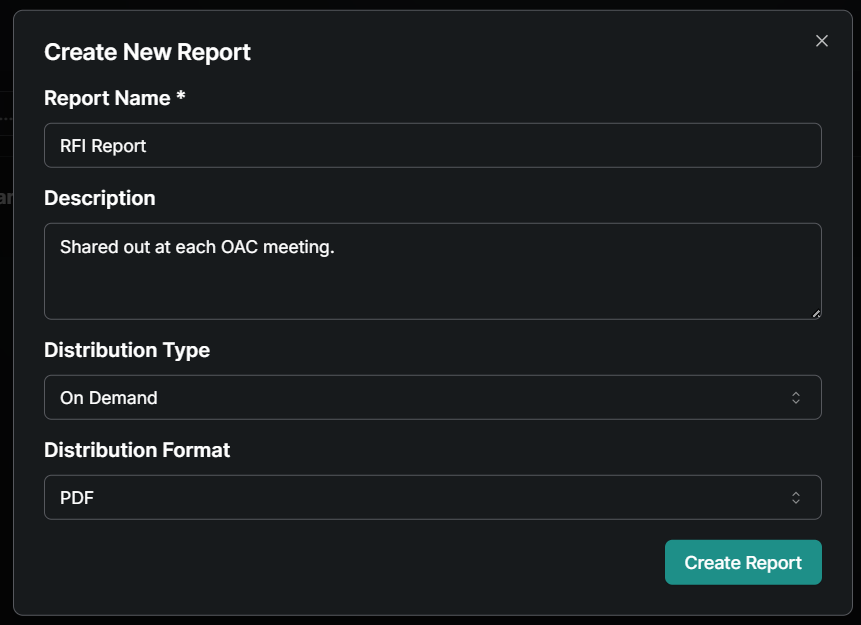
Give the report a Name and Description. Then choose if you want to send it as a link (brings you back into Mercury) or a PDF (opens an export in browser).
Distribution can be set to On Demand if Reoccurring choose the Interval (Weekly, Monthly, Etc.) and Timing
Select the Columns button in the upper left. Choose which columns you want to include on the report and move them in to the desired order by dragging the waffle on the left of the checkbox.
Use the Magnifying glass to set filters, the Eye icon to hide columns and the 2 squares icon to group any column.
Use the check box in the upper left if totals need to be included
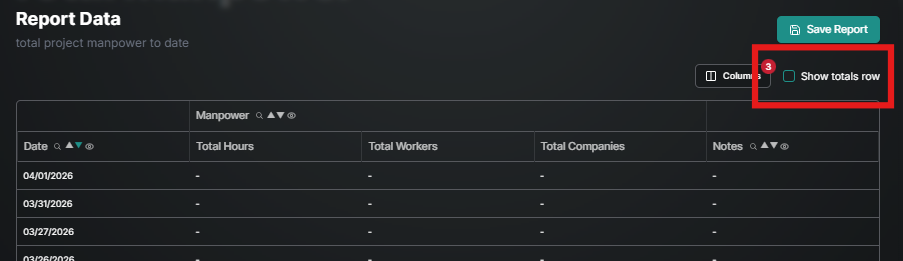
Hit Save Report!
Below is the creation of a simple submittal log:
COMPANY REPORTING
Create reports across projects by Tool.
After selecting Tool Settings, select the options ellipsis next to the template you’d like to create or view a report and select Company Report.
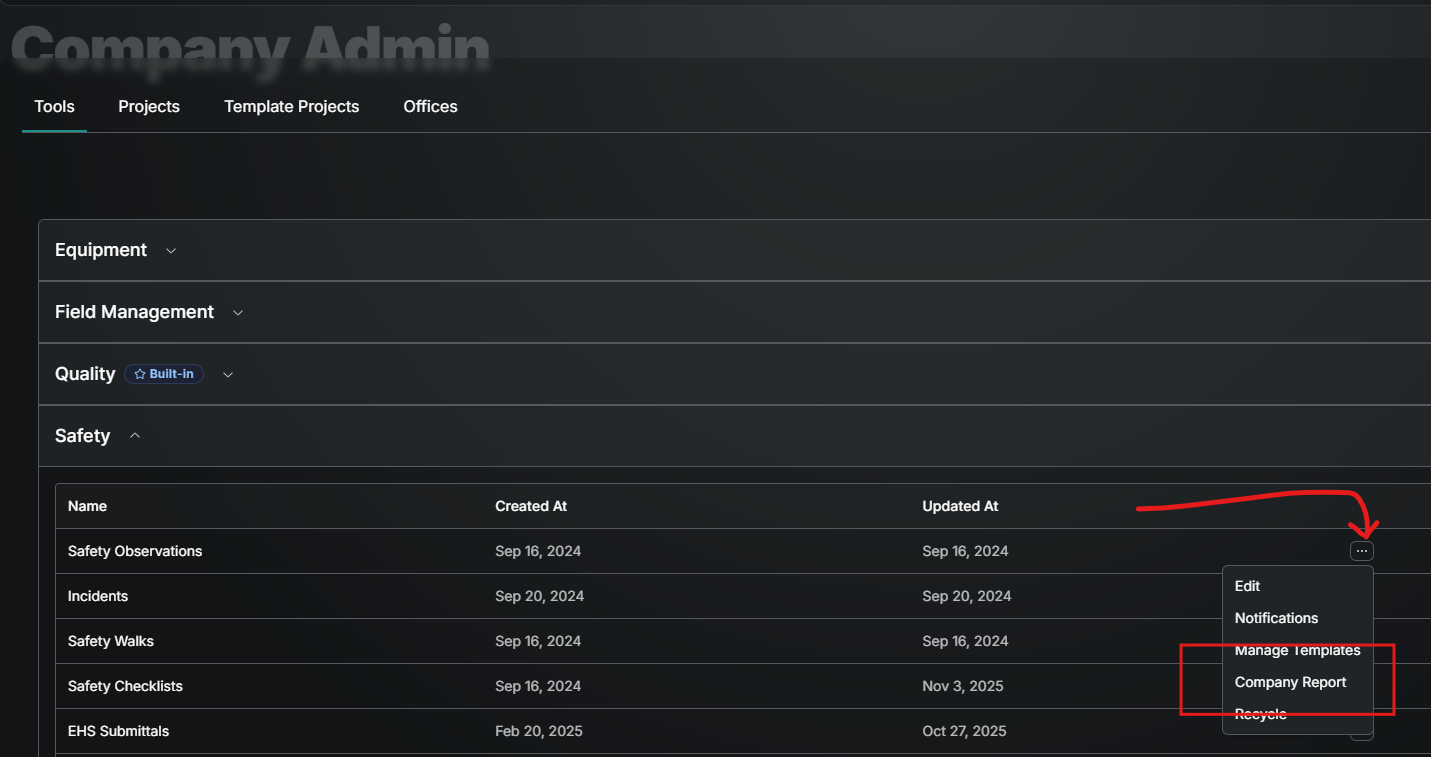
Use all the View features to sort, filter and hide columns and then Save that view so you can come back to it later. Check out the Form Table article for more details on those options.
Under Options export to CSV (excel file) or PDF (zip folder of each individual form).
Was this helpful?
Still need help? Ask the team