Quality Tool Admin
Build out the project specific QC plan.
Written By Patrick
Last updated 3 months ago
All instructions in this article are for QAQC managers only. Company level Admin Permissions required.
This tool is for the QAQC manager to plan out what needs to be inspected and where, and preset groups of checklists such that all the team needs to do is click "Create" and they're off an running.
Add/Update Checklist Items [Company Level]
Under Company Admin (gear in the far upper right), select the Tool Categories tab, and then next to Quality, choose Checklist Items
Choose the Default response template to the pass/fail checklist. This is the observation form that will appear when Pass or Fail is selected in the Checklist item.
The Edit Defaults button will allow you to change the name for Pass or Fail.
Ex. Fail = Deficient
Add the Group(s) that will carry the checklist items.
Checklist Items can be added individually or pasted from CSV or Excel Spreadsheet.
Use the pencil on the left to edit the text or change the response options. The three ellipses on the right will recycle (remove) or allow editing of
Validate QC Checklist Template
This template will be used when ever a Form is created from the Planner. The create a plan look to the next section. Check this Building Tools article to learn about editing templates.
Build Project QC Plan
Three tiers are available for organizing the quality checklists. After creation, default values can be selected for the group. Each sub-group inherits the default values from the group it was created from.
Add Planner Group > Add Input - Checklist Items > Default Values - Add Group or Individual
Add Subgroup > Add Input & Default Values
Add Subgroup > Add Input & Default Values
Add Forms, Type Label and Enter a Quantity
Planned Checklist Tags
Adding tags makes rolling up and searching planned checklists much easier so the user can more quickly find the inspection they need. This feature applies to both desktop and mobile.
Add/Remove Company Tags
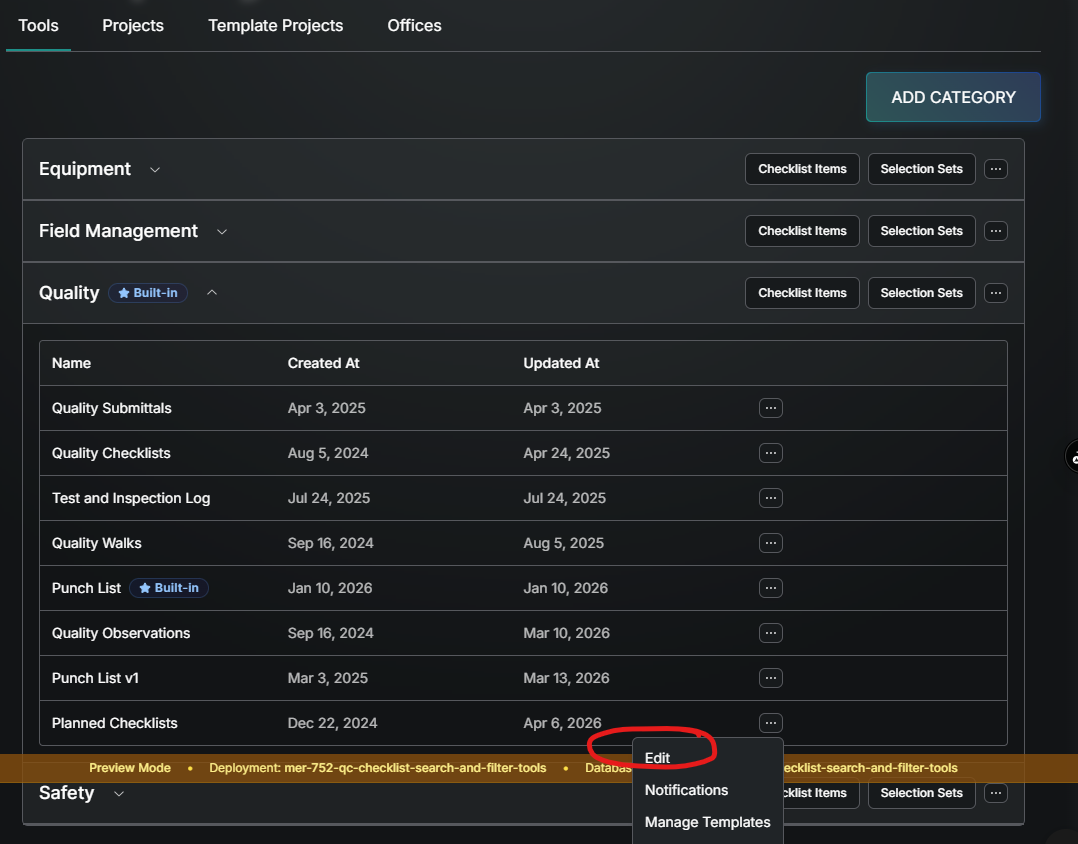
From the Company Settings gear (far upper right of screen), go to the tool options (three dots) and select Edit.
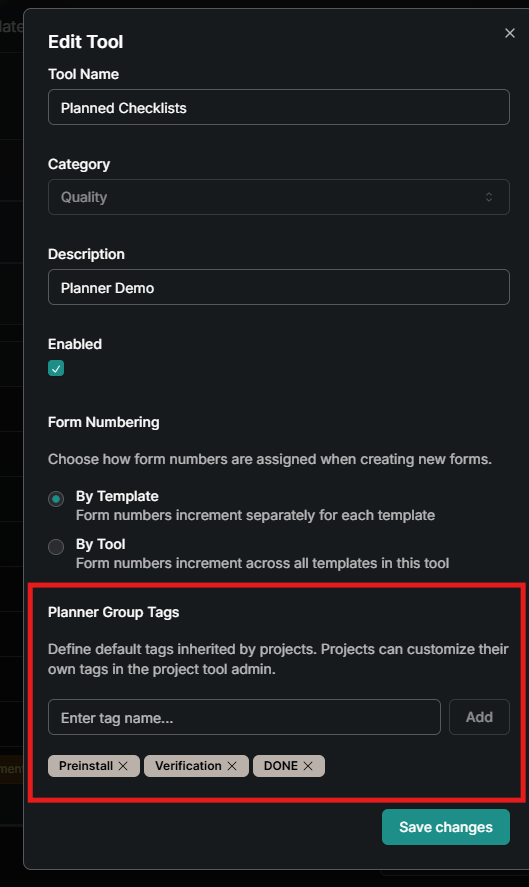
From the Planner Group Tags section type the tag name and select Add.
Add/Remove Project Tags
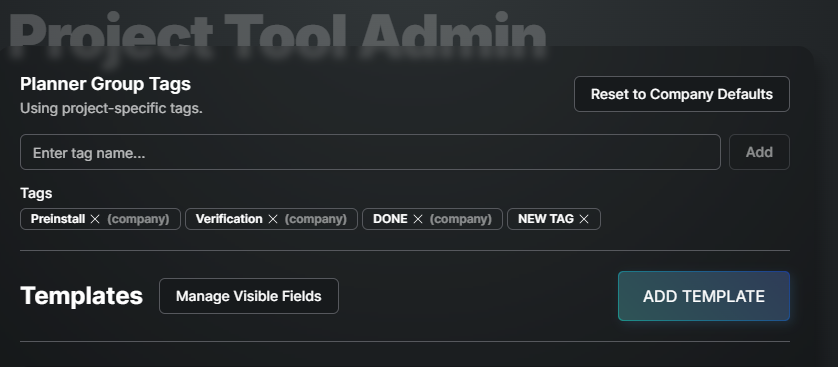
Tags are be entered at the company level by the QC Company admin, but more can be added at the project. At the project, select the Settings Gear next to the Planned Checklist Tool, select Customize Tags and you’ll find Tag settings at the top of the screen. You can also remove company level tags here. Use the Reset to Company Default button if you’ve gone too far with you tag changes.
Tagging Groups
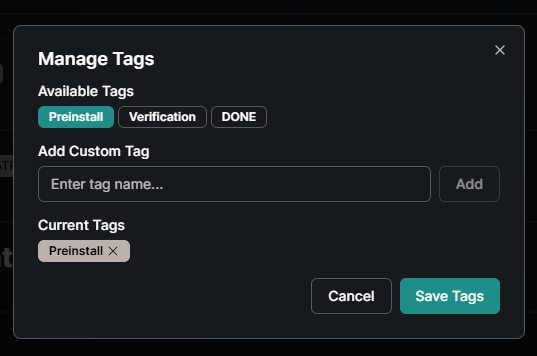
Use the options button on the far right of the group and choose tags.
Recycle Rules for Planned (QC) Checklists
If you choose to Recycle a:
Published Form will be voided. Voided forms in the the Planner View (roll up) will be hidden, but still show in the Table View.
Draft Form: It will be removed completely
Group or Sub Group: It will only be removed if there are no forms or all forms are Void.
Quality Tool Settings (Updated 4/1/2026)
Tool Checklist Settings:
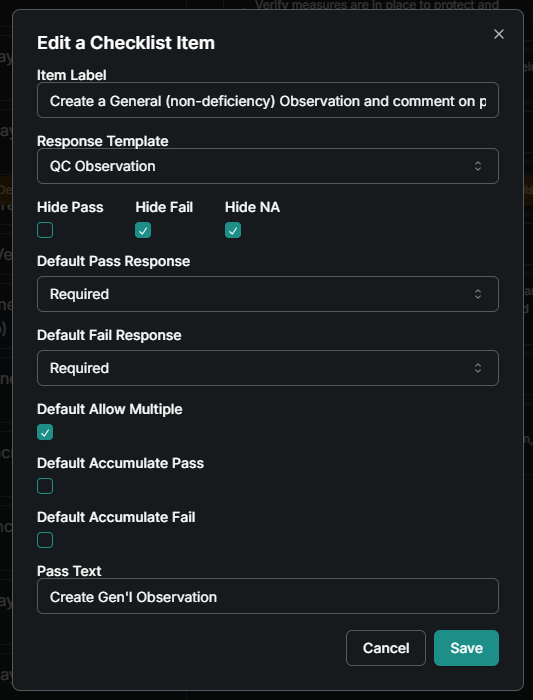
Typically allow multiple is true, Pass is Optional, Fail is Required and Acumlate is False. The exception is General Observations and Attach Document where Pass is Required (and there are no other buttons).
Typical Items
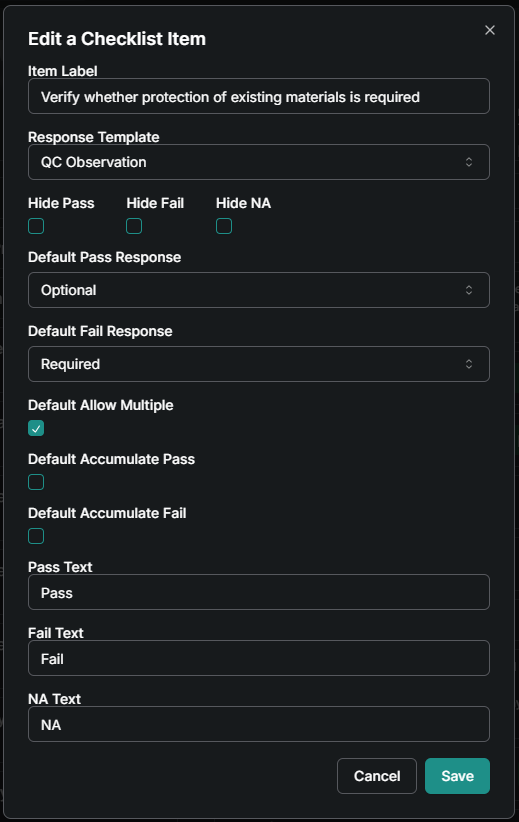
Items With Fail Hidden
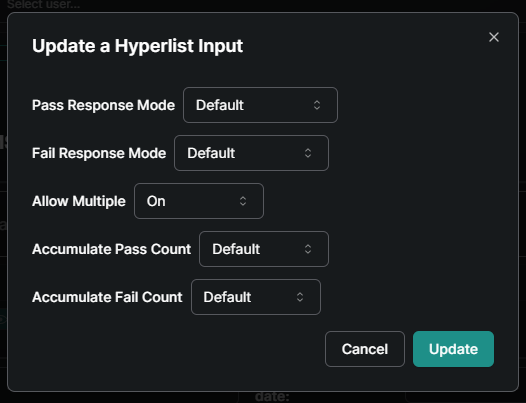
Template Hyperlist “QC Checklists” Template Settings:
In all cases the template is looking to the tool level.
Checklist Item Defaults
Set the defaults so that all new items are created with your desired settings. This feature also allows the updating of existing checklist item settings.
After opening the Checklist Item Settings select Edit Default
Choose all the defaults (see above for a definition of each”.
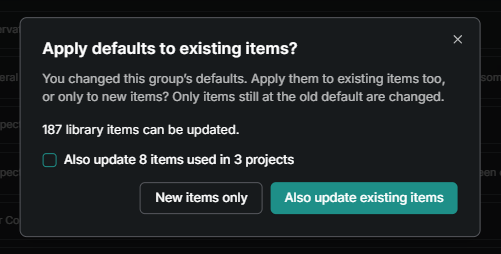
After Saving you will be prompted to update existing or only new items. A count of how many in the library differ from the settings just chosen will be displayed. Additional a checkbox will be provided to add the option of updating checklist items in active or existing checklists on projects.
Good to Know
Don’t forget to select Add Item after picking a Checklist Item
When importing the Planned Inspection Template, make sure to choose Planned under Display Mode.
Was this helpful?
Still need help? Ask the team