Assignees
Set up who responds to your form.
Written By Patrick
Last updated 25 days ago
The Assignees input is used throughout Mercury and central to making sure forms are tracked, come back on time, and have the proper reviewers. Those assigned to a form have the ability to respond with text and attachment. Keep that in mind when you are considering if it’s worth assigning, copying or just distributing.
Complex Assignees
Allow for more assignees and control over the order of their review. Complex is best used for tools like RFIs and Submittals (forms not on mobile). The ball in court is outlined in red.
Select ± Assignees
Drag in assignees from the Add Assignees button in the upper left
Arrange the Assignees responsible for a response and due dates. If the relationships cause an assignee to be required, the required flag will go away (avoiding redundancy).
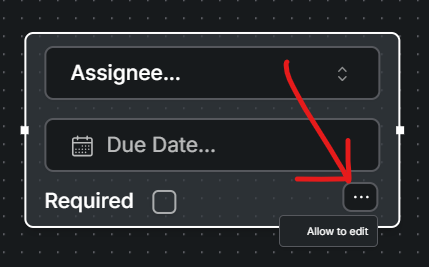
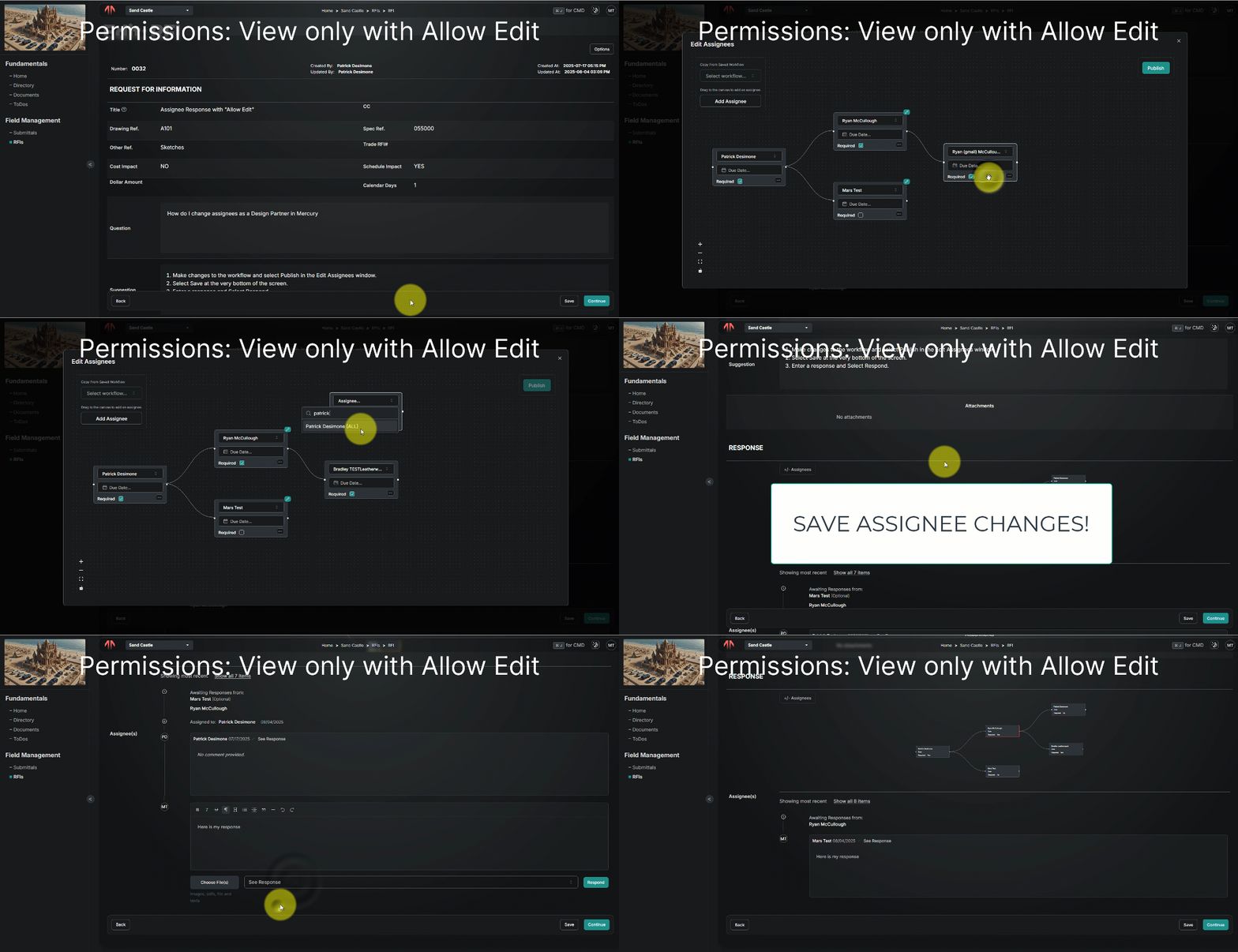
Allow Edit:
Use the three dots in the lower right to allow that assignee to edit the workflow when it’s in their court. For example, a submittal lands in the architects court and they need to forward it on to someone not included in the original workflow. If this option is selected the architect could then make changes to the assignees (add another person). Scroll a little further or just click here if you’re trying to modify assignees and respond.
Assign Either
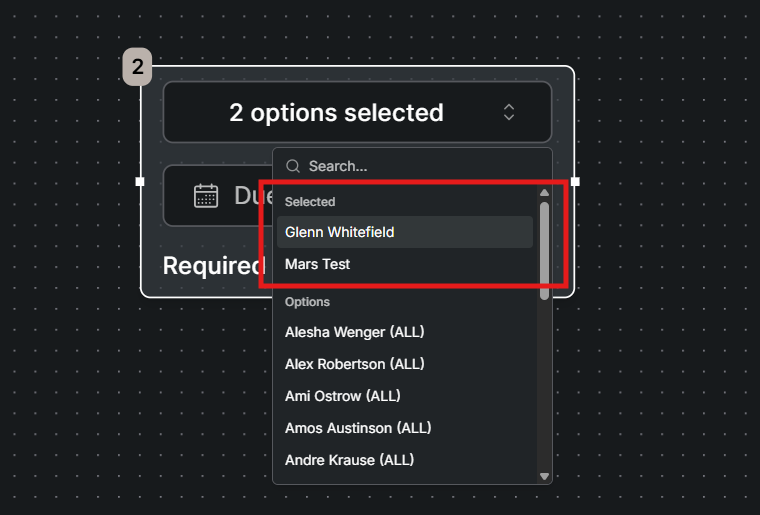
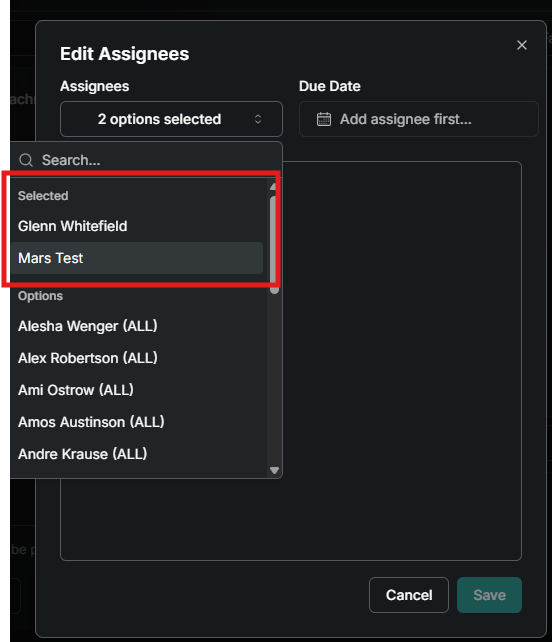
Allows two assignees to review at the same time and the first one to respond moves the ball forward. In the example below Glenn and Mars are selected, so both will receive the assignment at the same time, but either one can respond and when one responds the ball moves to the next court.
Save Workflow Templates
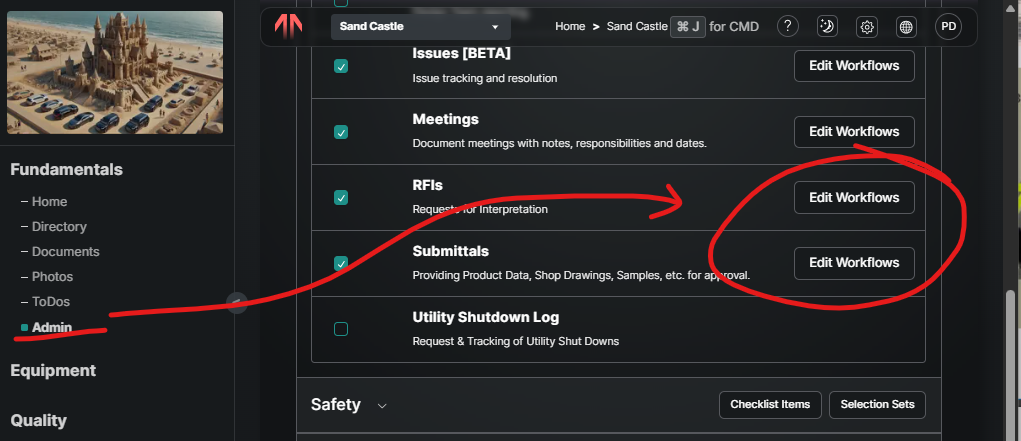
If you have a common set of people or workflow that can be re-used, go to Fundamentals>Admin expand the tool you want (probably Field Management), and then next to the template there is an Edit Workflow button. Build a workflow there and then when you’re creating a from with the Complex Assignees input it will show up in the Copy From Saved Workflow options.
Series Review
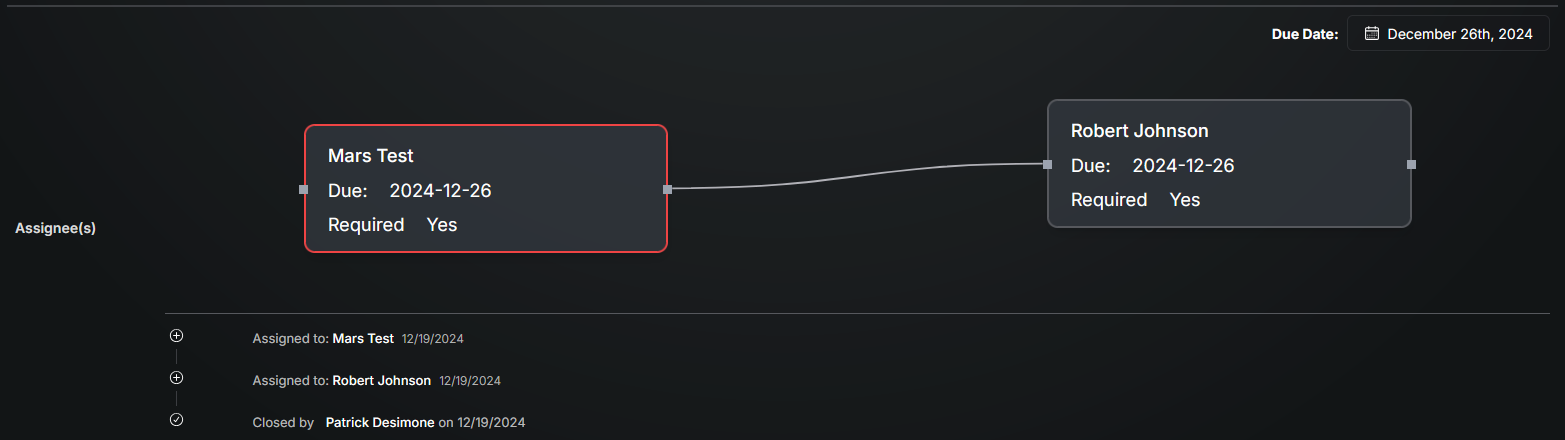
Notifications go out to all assignees at the same time and they all can view the form regardless of which step they are, but it guarantees each party gets their review prior to the form moving forward.
Final Response
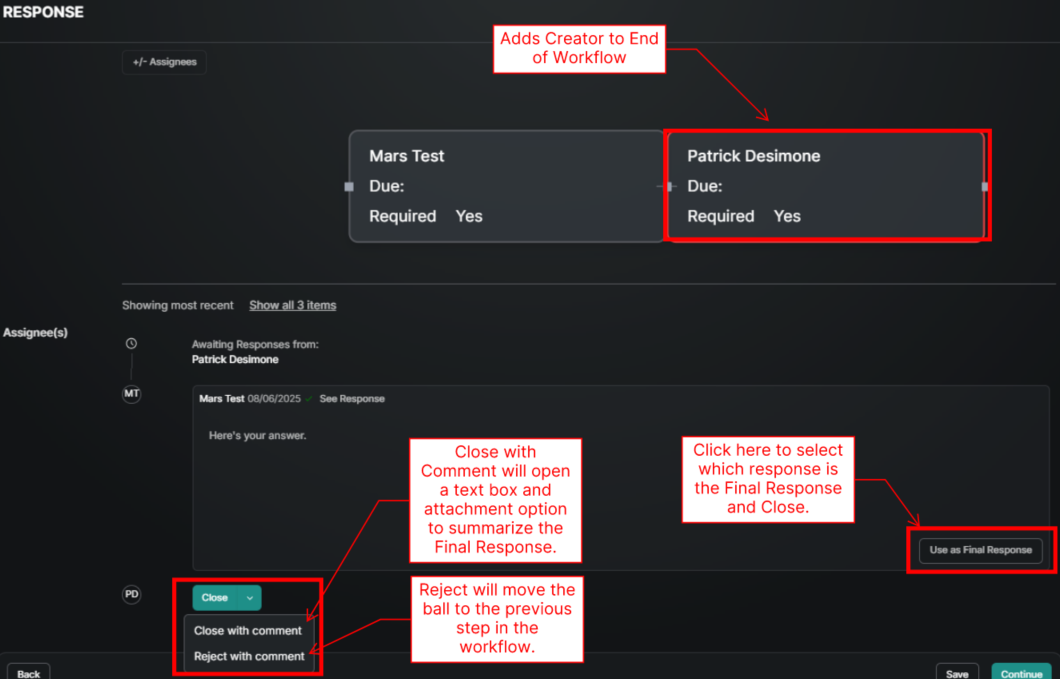
The form creator will be automatically added to the end of every workflow to provide the “final response”. This provides an opportunity to make sure the information shared is complete without having to read every comment and attachment in the workflow. In the export and on screen it will be on top by default therefore hiding the detailed history. Here are the options provided:
Close - No comments or attachments, just close the form to let the last assignees response stand ad the final answer.
Close With Comment - This opens up a text box and upload button to summarize the information that was generated from multiple assignees along the way.
Reject With Comment- Moves the ball backward one step to the previous assignees court with a place to provide an explanation.
Use as Final Response - This option will appear in the response bubble of each assignee. Select the one response that captures the complete answer.
Amending a Closed Form
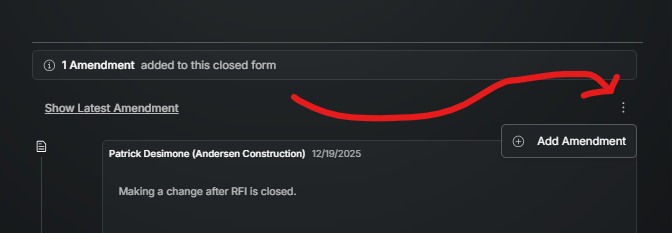
If a RFI or Submittal is closed and additional information needs to be added, use the three vertical dots in the upper right of the assignee history to + Add Amendment.
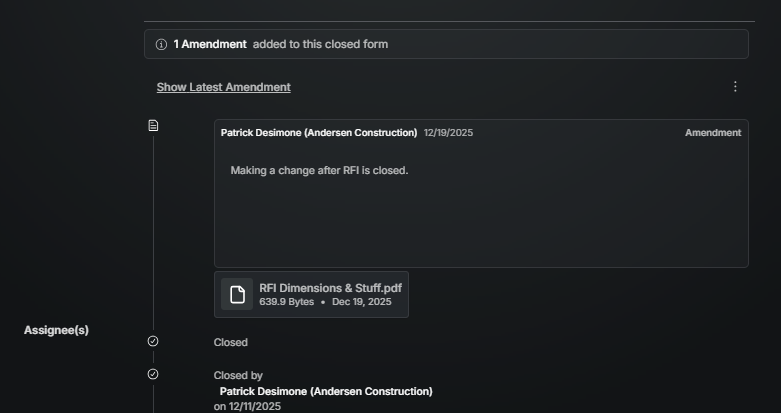
The amendment will show who and when made the update and show in chronological order (the top) of the history. The status will remain Closed and when the Amendment is posted, notifications will go out to all assignees. MAKE SURE TO DISTRIBUTE AGAIN IF AN AMENDMENT IS MADE AFTER THE INITIAL DISTRIBUTION.
Resubmitting
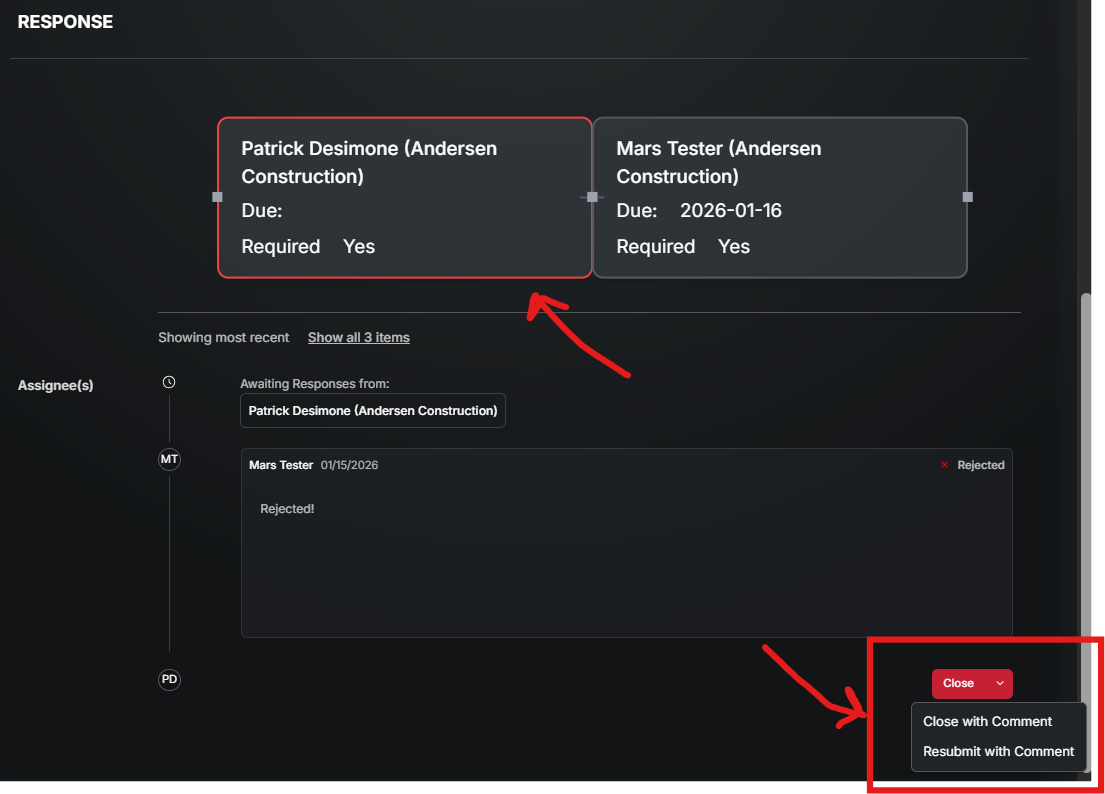
If the assignee in the first step in the workflow chooses reject as the response, the creator of the form will be automatically added to the start of the workflow (similar to how their added to the end to close). The creator then has the option to Close with Comment, or Resubmit. Close with comment assumes a revision will be created. Resubmit starts the workflow over again and the form remains Open..
In the example below the workflow originally only had Mars tester. Then when Mars rejected it the creator (Patrick) was added on the beginning and given the Close or Resubmit options.
Responding
When (and only when) in a users court, they have the ability to add text and upload attachments. Once complete, use the Response button to choose the verbiage that represents “move forward” or “move backward int he Workflow. For example Approve would move forward and Rejected would move backward.
Responding And Editing Assignees
Responding on Behalf of
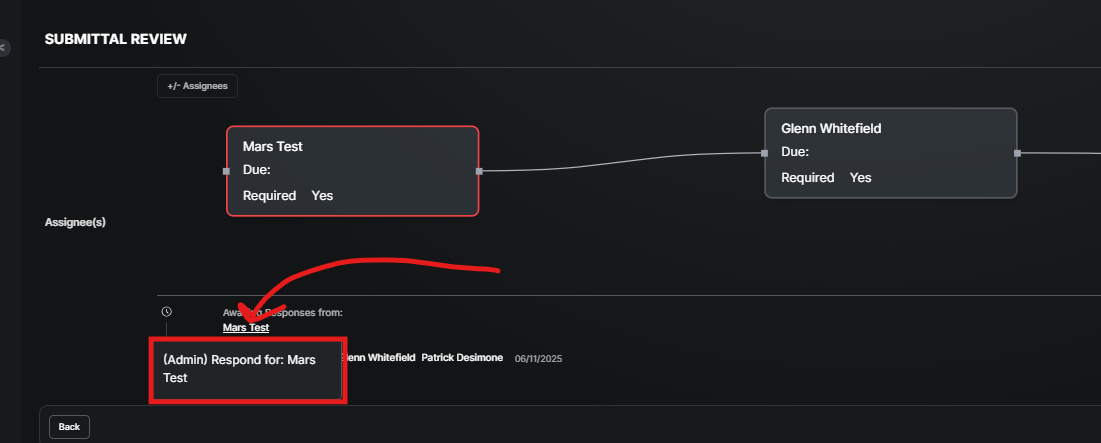
If there is a user in the workflow who provided a response outside of Mercury, an Admin on the tool can respond on their behalf to keep the workflow moving. Simply hover over the name of the user you’d like to respond for and select “Respond for User”. Note that the history will clearly say “User A responded on Behalf of User B”.
Simple Assignees
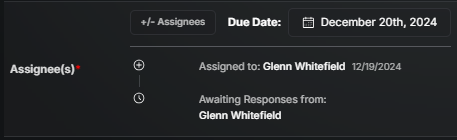
Created for mobile but available on desktop to, simple assignees removes the building of workflows. It uses a simple all assigned or first to respond method of assigning responsible parties.
All Assignees Required
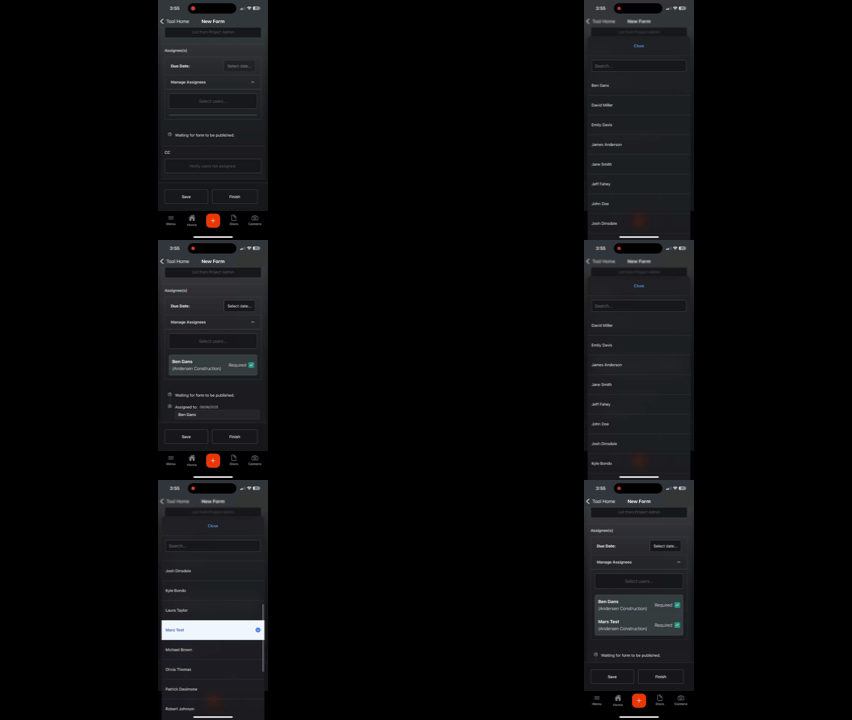
After selecting and assignee, leave the look up screen before adding another. Click Select Users again to add additional assignees. This will require everyone assigned to respond before the form can be closed.
Desktop
Mobile
Assign Either
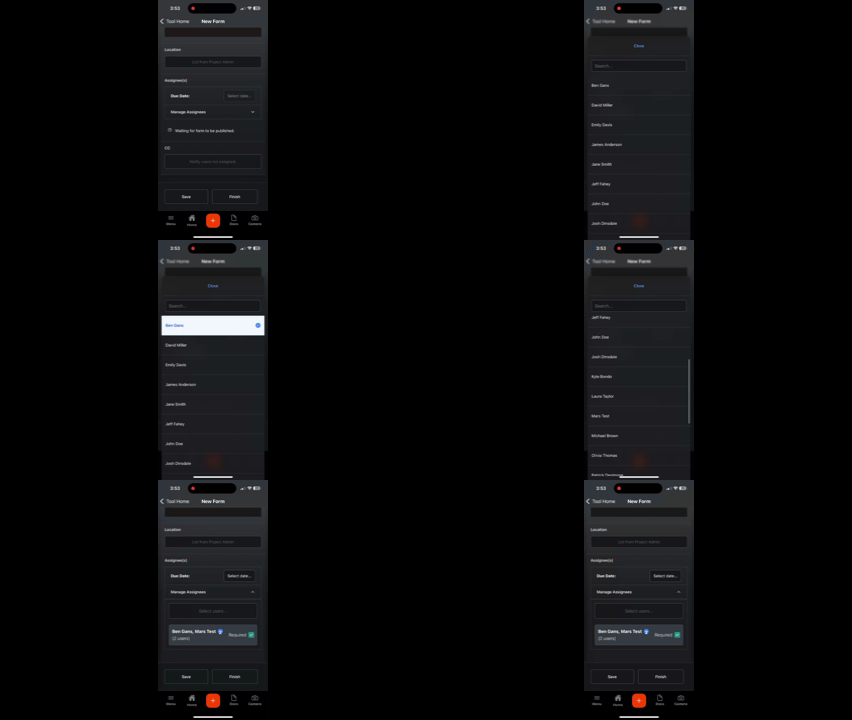
By selecting multiple names before closing the look-up window, a response from EITHER assignee will move the ball forward.
Desktop
Mobile
Good to Know
Complex Assignees do not work on Mobile (they should not be used there anyway).
For complex assignees, each project can have their own terms for actions that move the ball in court forward or backward. For example, Rejected would move backward and Approved forward.
What if I know the company but not the name of anyone in it? When looking up a user, you can start typing their company name and everyone from that company will be available to select.
Was this helpful?
Still need help? Ask the team